Requesting certificates
Any signed-in user can request a certificate from the profiles made available to them. This page describes the request form, what happens after submission (immediate issuance, approval, domain validation) and the e-mails you receive. Downloading, renewing and revoking are described in Managing certificates.
Before you start
| You need | Where it comes from |
|---|---|
| A certificate profile you are allowed to use | An administrator publishes profiles to organizations. The form only lists the profiles visible to you (Certificate profiles) |
| A team e-mail address | Always required. It receives the notifications for the certificate, and it attaches the certificate to a team (see below) |
| Membership of the profile's organization | The organization of the certificate comes from the profile and from your own memberships. You cannot address a request to an organization you do not belong to (Organizations and teams) |
The profile decides almost everything else: the certificate authority, the allowed key algorithms, which subject fields you can fill in, whether you may provide your own CSR, and whether a validator must approve the request.
Request a certificate
Open Requests > New Request in the side menu, or click Request Certificate on the My Certificates page. The form is a wizard in five steps (Template, Mode, Algorithm, Subject, Submit); Back and Next move between steps without losing what you typed.
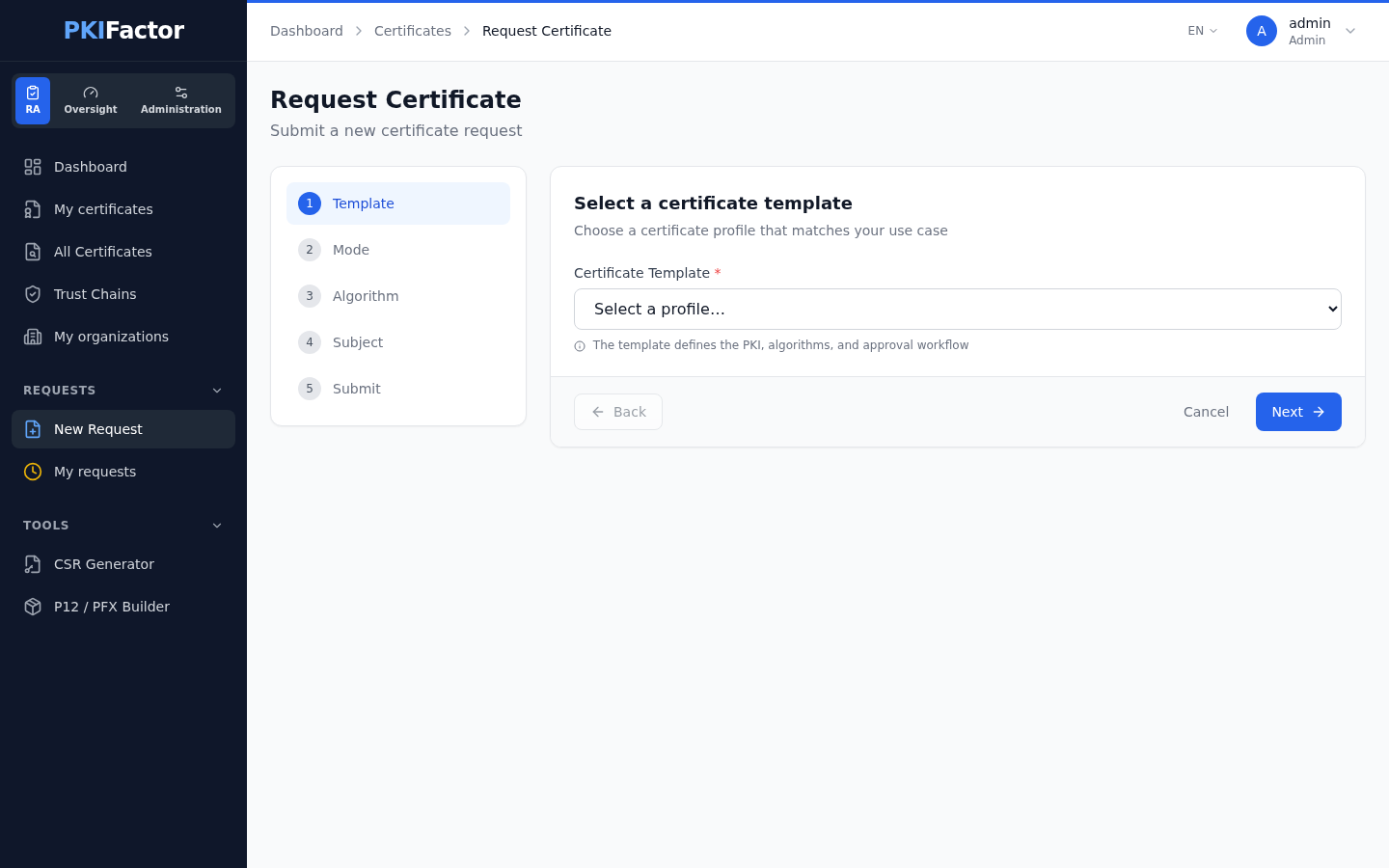
Captured with an administrator account: an ordinary user sees the same form, with fewer entries in the side menu.
Step 1: choose the profile
Select the profile in Certificate Template. Choosing a profile moves you to the next step.
Step 2: choose who generates the key
| Mode | What happens | What you get |
|---|---|---|
| Generate Key Pair | PKIFactor generates the private key, keeps it encrypted, and builds a PKCS#12 file protected by a password you choose at step 5 | A PKCS#12 file (key and certificate) and the certificate in PEM |
| Upload CSR | You generate the key yourself and provide a certificate signing request (CSR), by uploading a file (.pem, .csr, .txt) or pasting the PEM text |
The certificate in PEM only. The private key never leaves your machine |
The profile may allow only one of the two modes. A Recommended badge marks the profile's default mode.
In Upload CSR mode, clicking Next sends the CSR to PKIFactor for analysis. The fields found in the CSR (common name, organization, key algorithm...) are then pre-filled and locked in the next steps, with a from CSR badge; only the missing fields stay editable. A CSR must contain -----BEGIN CERTIFICATE REQUEST----- and be at most 64 KB.
To produce a CSR without a command line, see Crypto tools.
Step 3: choose the key algorithm
Key Algorithm lists the algorithms that the profile, its authority and the issuance policies allow together (for example RSA-3072, ECC-P256, ECC-P384); the first one is the profile's default. In Upload CSR mode the algorithm comes from the CSR and cannot be changed.
If the profile issues post-quantum or hybrid certificates, this step shows Post-Quantum Algorithm Pairing instead: pick one of the pairs authorized by the administrator (for example ECC-P256 + ML-DSA-65, or ML-DSA-65 alone for a purely post-quantum certificate). A badge names the profile's strategy:
| Strategy | What is issued |
|---|---|
| Dual Certificate | Two linked certificates (RFC 9763), one classical and one post-quantum, issued together; clients use the one they support |
| Composite | One certificate with a combined classical and post-quantum key |
| Hybrid AltSig | One certificate carrying two signatures (X.509 alternative signature), still readable by classical clients |
If the profile has no pair configured, the step shows No algorithm pairs configured for this template.: ask the administrator. See Crypto-agility.
Step 4: describe the subject
The fields shown depend on the profile:
| Field as shown | Notes |
|---|---|
| Common Name (CN) | Usually required, for example web01.example.com |
| Subject Alternative Name (SAN) | DNS names or IP addresses, comma-separated, for example www.example.com, 192.0.2.10. An IP address is recorded as an IP SAN, anything else as a DNS name |
| Organization (O), Organizational Unit (OU), Locality (L), State/Province (ST), Country (C), Email (E) | Shown only if the profile uses them. Country takes a two-letter ISO code (FR, US) |
| Custom fields | Fields the administrator added to the profile (for example a business unit or a cost center), shown under their own name. Their values are recorded with the request |
| Team Email | Required. When you belong to exactly one team, its address is filled in for you; when you belong to several, the field suggests their addresses as you type. Change it if the certificate belongs to another team. See below |
| Organization (list) | Appears only when several of your organizations may use the profile: choose the one the certificate belongs to. With a single possible organization, it is set for you and the list is hidden |
A field marked fixed by profile shows a value imposed by the profile: it is read-only and PKIFactor applies it whatever is typed. Fields marked with a red asterisk are required; if one is left empty, Submit Request shows Cannot submit: field on step N: "...": ... and names the field to fill.
The profile can also restrict names (for example to your domains) or forbid a field. A name outside the profile's policy, or a field the profile does not allow, is refused at submission with an explicit message.
What the team e-mail does
The team address receives the same notifications as you (issuance, revocation, expiry alerts). PKIFactor also attaches the certificate to the team identified by that address, looked up in the directory sources configured by the administrator: members of that team (who are also members of the certificate's organization) can then download, renew and revoke the certificate like you. Use a shared address of the team that runs the service, not your personal address.
Step 5: review and submit
The summary recalls the profile, the mode, the algorithm (for a post-quantum profile: PQC Strategy, Classical Algorithm and PQC Algorithm), whether Approval Required applies, and the organization.
In Generate Key Pair mode, set the PKCS#12 Password:
- at least 8 characters, typed twice (Password and Confirm Password);
- or click Generate for a random 16-character password, then Copy it.
PKIFactor stores this password encrypted, to rebuild the PKCS#12 file at each download. It is never shown again: keep it in a password manager. You need it to open the PKCS#12 file.
Click Submit Request.
What happens after you submit
| Outcome | When | What you see |
|---|---|---|
| Issued at once | The profile does not require approval and the authority answers immediately | A Certificate Issued page, then the certificate is in My Certificates with the status Issued |
| Pending Approval | The profile requires approval, or an issuance rule of the administrator forces it for this request | The list opens with Request recorded. It is awaiting approval from an approver in your organisation.... The certificate shows Pending Approval |
| Pending DCV | The profile issues from a public CA that must first validate control of the domain | The list opens with a message saying the certificate awaits domain control validation (DCV) by the CA. The certificate shows Pending DCV |
Requests > My requests lists your requests in Pending Approval.
Approval
A request that needs approval goes to the approval queue of the certificate's organization. The validators of that organization are notified by e-mail; one of them takes it over and approves or rejects it, and an absent validator can be replaced by a delegate (Approver Inbox > Delegations). You do not choose the validator, and nobody can approve their own request. See Approvals.
| Decision | Result |
|---|---|
| Approved | A Request approved e-mail, then PKIFactor issues the certificate (and, in Generate Key Pair mode, generates the key at that moment, protected by the password you set). Status Issued, Certificate issued e-mail. If the authority fails at that moment, you receive Issuance failed after approval with the reason and whom to contact |
| Rejected | Status Rejected. Nothing is issued. You and the team address receive Request rejected, with who decided, when, and the reason the validator gave |
A rejected request cannot be resubmitted: make a new request.
Domain validation (public CAs)
For a profile linked to a public CA (Sectigo, DigiCert), the CA validates the domain before issuing. When the administrator has set up automatic DNS validation, there is nothing to do on your side. Once the CA has issued, PKIFactor collects the certificate; you can also trigger the collection with Collect Certificate in the certificate's actions menu, or Check & Collect on its detail page. See Public CAs and domain validation.
Download the issued certificate
From My Certificates or the certificate's detail page:
| Format | Contains | Available |
|---|---|---|
Certificate (.crt, PEM) |
The certificate only | Always, while the status is Issued |
PKCS#12 (.p12) |
The private key and the certificate, protected by your PKCS#12 password | Generate Key Pair mode only, for a limited time after issuance (48 hours by default, set by the administrator) |
Full chain (_chain.pem) |
The chain as stored by PKIFactor | When the authority returned it |
Details, including the PKCS#12 availability window, are in Managing certificates.
E-mail notifications
| Situation | E-mails sent to you and to the team address |
|---|---|
| Issued immediately | Certificate issued: ... |
| Waiting for approval | Request registered: ... at submission, then Request approved: ... and Certificate issued: ..., or Request rejected: ... |
| Issuance fails after approval | Issuance failed after approval: ... |
| Waiting for domain validation | Request registered: ..., then Certificate issued: ... once the certificate is collected |
| Revoked | Certificate revoked: ... |
| Close to expiry | Expiry alerts, see Managing certificates |
These are the default English subjects, preceded by the prefix [PKIFactor]; the administrator can change the templates, the prefix and the language, and can turn off some notifications per profile (E-mail and notifications). No e-mail goes out if the e-mail service is not configured.
Via the API
Requests are JSON on POST /api/v1/certificates/request. clm_template_id and team_email are required. Without csr_pem, PKIFactor generates the key and p12_password (8 characters minimum) is required; with csr_pem, p12_password is refused.
# Sign in (form fields), keep the session cookie
curl -s -c jar -X POST https://clm.example.com/api/auth/login \
  --data-urlencode "email=alice@example.com" --data-urlencode "password=$PKF_PASSWORD"

# Profiles you may use, with their id and, when relevant, eligible_organizations
curl -s -b jar https://clm.example.com/api/v1/clm/templates/available

# Request with a key generated by PKIFactor
curl -s -b jar -X POST https://clm.example.com/api/v1/certificates/request \
  -H "Content-Type: application/json" \
  -d '{"clm_template_id": 3,
       "common_name": "web01.example.com",
       "san": "web01.example.com, www.example.com",
       "key_algorithm": "ECC-P256",
       "team_email": "web-team@example.com",
       "p12_password": "'"$P12_PASSWORD"'"}'
Other fields: organization, organizational_unit, country, state, locality, email, organization_id (when several of your organizations may use the profile), csr_pem. The answer's message is in French:
message |
certificate |
|---|---|
Certificat émis |
{"id": ..., "status": "ISSUED"} |
Demande enregistrée (en attente d'approbation) |
{"id": ..., "pending_approval": true} |
Demande enregistrée (en attente de validation de domaine) |
{"id": ..., "status": "PENDING_DCV", "pending_dcv": true, ...} |
The route accepts 10 requests per minute. A request with a CSR is shown in REST API.
Troubleshooting
| Symptom | Cause and fix |
|---|---|
| The profile list is empty | No profile is published to your organizations, or you belong to no organization yet. Ask your administrator |
| Please select an organization. at step 4 | Several of your organizations may use this profile: choose one in Organization |
| Invalid CSR format. Must contain '-----BEGIN CERTIFICATE REQUEST-----'. | The file is not a PEM CSR (for example a DER file or a certificate). Convert it with openssl req -in req.der -inform DER -out req.pem |
| Cannot submit: field on step N: ... | A required field is empty: go back to the step named and fill in the field |
| Request Error with Invalid CSR: ... (API: CSR invalide : ...) | The CSR is malformed or its signature does not verify. Generate it again |
| This profile does not allow the following fields: ... (API: Ce profil ne permet pas de renseigner : ...) | The profile forbids those subject fields: remove them from the form or from the CSR |
| Une organisation cible (organization_id) est requise pour ce profil à approbation. | The profile requires approval and no organization could be determined: ask the administrator to attach the profile to your organization |
| Certificate request failed (ORGANIZATION_REQUIRED) | Through the API: several of your organizations may use the profile; add organization_id |
| Aucune de vos organisations n'est autorisée à utiliser ce profil. | None of your organizations may use this profile. Since version 1.8.49 a refusal by the profile's rules shows its reason instead of Certificate request failed (POLICY_VIOLATION); some of these reasons are still written in French |
| Algorithme de clé « ... » non autorisé pour ce profil (autorisés : ...) | Through the API: the requested key_algorithm (or the key of the CSR) is not among the algorithms that the profile, its authority and the issuance policies allow together; use one of those listed |
| Certificate request failed (CONNECTOR_ERROR) | The authority refused or could not be reached. The detailed reason is only in the server log: contact your administrator |
| A name is refused by a policy message | The name is outside the domains allowed by the profile, or an issuance rule blocks it. The message shown is the one the administrator wrote on the rule, or Demande refusée par une politique d'émission. when the rule has none (Issuance policies) |
| The PKCS#12 password must be at least 8 characters | Choose a longer PKCS#12 password |
| The request stays in Pending Approval | The validators of the organization have not decided yet. Contact them or your administrator |
| The certificate stays in Pending DCV | The CA has not validated the domain yet. Try Collect Certificate later, or ask your administrator to check the domain validation |
| You lost the PKCS#12 password | It cannot be recovered. Revoke the certificate and request a new one |