Appliance installation
The appliance is a Linux host prepared by the PKIFactor provisioner: Docker, the application files under /opt/pkifactor, the pkifactor-ctl administration command and the system services. The same procedure applies to a virtual machine you create and to an existing server.
What you receive
| File | Content |
|---|---|
pkifactor-provision.sh |
Self-extracting provisioner: application files, pkifactor-ctl, setup wizard, systemd units, and the ZetaCert public key that the appliance uses to verify later upgrade packages |
pkifactor-images.tar.gz |
All Docker images, for installation without registry access |
cosign.pub |
ZetaCert public key, to verify the signatures of the images and of later upgrade packages |
Transfer the files to the host:
scp pkifactor-provision.sh pkifactor-images.tar.gz admin@clm-host:/tmp/
1. Run the provisioner
sudo bash /tmp/pkifactor-provision.sh
pkifactor-images.tar.gz must be in the same directory as the provisioner. The provisioner:
- installs Docker Engine and the Compose plugin if they are missing (see Requirements for air-gapped hosts), and the tools the wizard needs (
dialog,openssl,python3); - opens HTTP, HTTPS and SSH in
firewalld, or inufw, when one of them is present; - extracts the application files to
/opt/pkifactor, including the ZetaCert public key/opt/pkifactor/cosign.pub; - loads the Docker images from
pkifactor-images.tar.gz; - installs
pkifactor-ctlin/usr/local/binand thepkifactorandpkifactor-setupsystemd services.
The details are written to /var/log/pkifactor-provision-<date>.log. Two options exist: --version <version> sets the image version to use, and --cleanup prepares a host meant to be distributed as a template (it removes the image archives once loaded, the provisioning files and the caches, and restricts root access).
2. Run the setup wizard
Sign in on the console of the appliance (or over SSH). As long as the appliance is not configured, a message at sign-in reminds you to run the wizard:

sudo pkifactor-ctl setup
The wizard has five steps. Move with the arrow keys and Tab, confirm with Enter; Back returns to the previous step.
Welcome
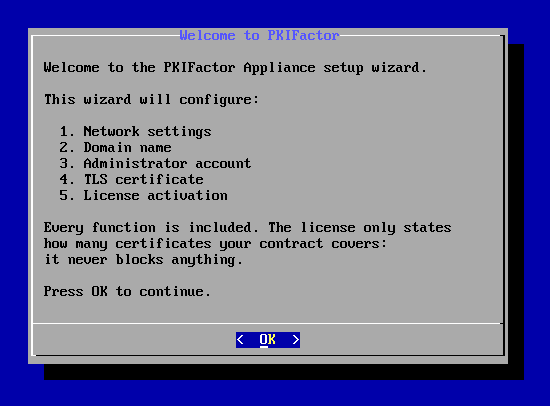
The first screen lists the five steps. Every function of PKIFactor is included; the license only states how many certificates your contract covers.
Step 1/5: Network
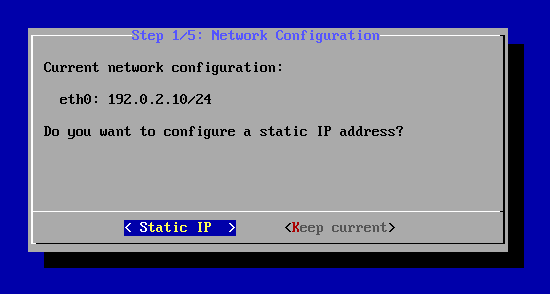
The wizard shows the address of each network interface. Choose Static IP to enter an address, a prefix length (default 24), a gateway and a DNS server for the interface of the default route; the change is applied through NetworkManager (nmcli), so this choice needs a host managed by NetworkManager. Choose Keep current when the network is already configured (DHCP, an address set when the virtual machine was created, or a host whose network you manage yourself).
Step 2/5: Domain
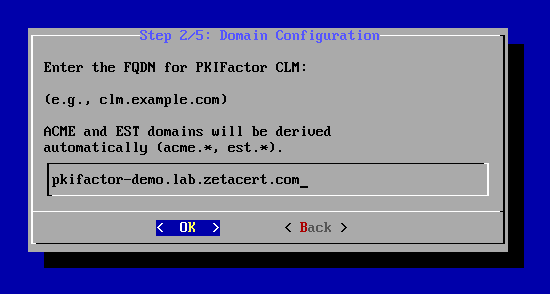
Enter the name under which users will reach PKIFactor. The names of the protocol gateways are derived from the parent domain: with clm.example.com, the wizard uses acme.example.com, est.example.com, cmp.example.com and scep.example.com. A name with a single dot is used as the parent itself: example.com gives acme.example.com and so on. Create these names in your DNS, pointing to the appliance. The wizard also sets the host name of the appliance to this name.
Step 3/5: Administrator
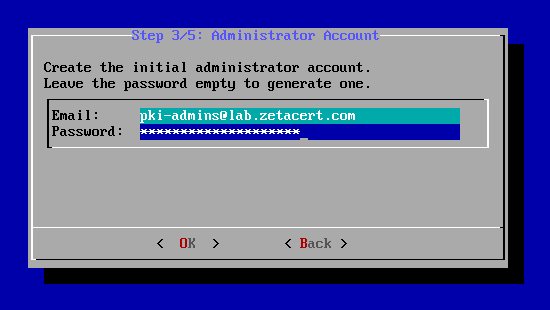
Enter the e-mail of the first administrator (default admin@zetacert.com) and, optionally, its password; the password is masked while you type. Leave it empty to have one generated: it is shown once, at the end of the wizard. In either case PKIFactor asks for a new password at the first sign-in.
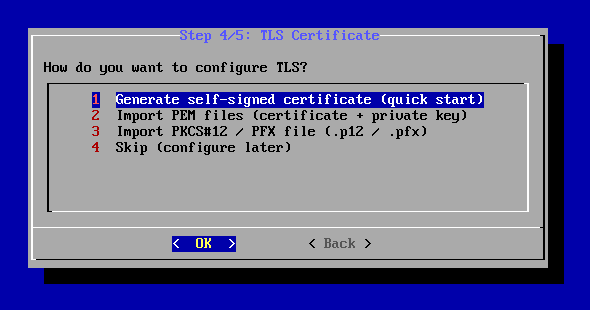
Step 4/5: TLS certificate
Choose how the platform presents itself over HTTPS:
- Generate self-signed certificate: RSA 2048 bits, valid one year, covering the CLM name and the four protocol names;
- Import PEM files: the paths of the certificate and of its private key. The wizard warns when the certificate does not cover the ACME or EST name. It does not ask for the chain: add it afterwards with
pkifactor-ctl tls update; - Import PKCS#12 / PFX file: the path of the file and its password; the chain contained in the file is kept.
The wizard deletes the imported files (PEM files or PKCS#12) from their original location once copied, so that no private key is left behind in /tmp: keep your own copy elsewhere. When a file cannot be read, the wizard falls back to a self-signed certificate. Skip also generates a self-signed certificate. You can replace it at any time with pkifactor-ctl tls update (below), or let PKIFactor issue and renew it itself (Service certificates).
Step 5/5: License
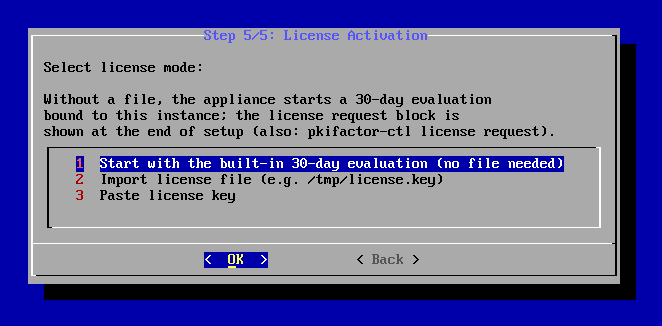
Start with the built-in 30-day evaluation, import a license file, or paste a license key (it starts with ZETA-). The evaluation is bound to this installation and needs no file; the license request shown at the end can be sent to ZetaCert later. An invalid file or an empty key leads to the evaluation.
Start and summary
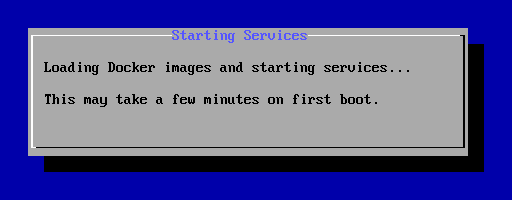
The wizard writes the configuration and starts the services, with the four protocol gateways; the first start takes a few minutes. The details of this step are written to /var/log/pkifactor-setup.log.
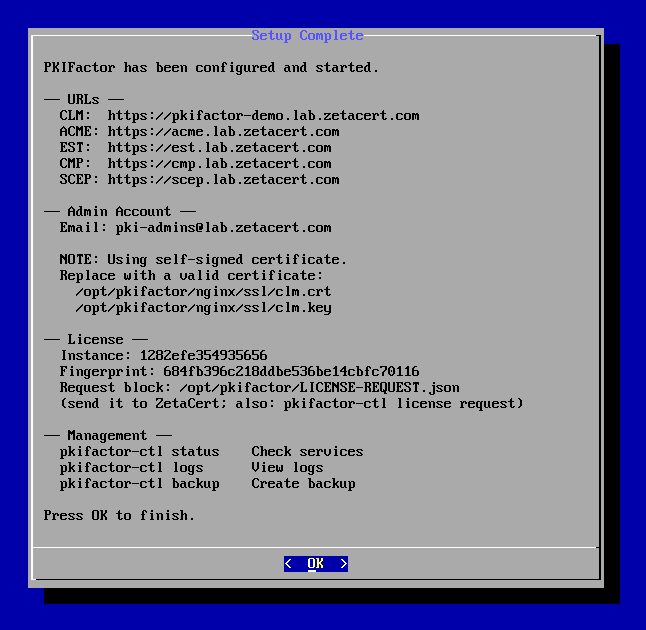
The summary gives the addresses of the interface and of the protocol gateways, the administrator account (and its password when it was generated), a reminder when the TLS certificate is self-signed, and the identifiers of the license request (instance and fingerprint).
Behind the scenes, the wizard:
- generates every secret: database passwords, the encryption key of the data at rest, the token signing keys, the API keys of the protocol gateways, and the proofs shared between nginx and the services (
EST_PROXY_SECRET,MTLS_PROXY_SECRET). The encryption key, the token and session keys and the key of the data-key cache are written as files in/opt/pkifactor/secrets/(a directory readable only byrootand thepkifactorgroup), never in.env; the other values go to/opt/pkifactor/.env(mode 640); - starts all services, including the four protocol gateways (ACME, EST, CMP, SCEP);
- removes the initial administrator password from
.envonce the account exists; - saves the license request in
/opt/pkifactor/LICENSE-REQUEST.json; - marks the appliance as configured: running the wizard again then only answers PKIFactor is already configured (see
pkifactor-ctl reconfigurebelow).
Keep the generated password
A generated password is shown once. Sign in right away: PKIFactor forces a new password at first sign-in.
Back up the secrets directory
/opt/pkifactor/secrets/db_encryption_key protects the data at rest (credentials of authorities and devices, private keys held by PKIFactor). Losing it, together with the backups that contain it, makes this data unrecoverable. Store a copy offline, or move the key protection to a KMS or an HSM (Encryption at rest).
Unattended installation
The wizard also runs without interaction, from a configuration file of key=value lines (key: value is accepted too; lines starting with # are ignored):
domain=clm.example.com
admin_email=pki-admins@example.com
# admin_password=   leave empty: a random password is generated and printed
ssl_mode=custom
ssl_cert=/root/tls/clm.crt
ssl_key=/root/tls/clm.key
ssl_ca=/root/tls/chain.pem
# license_key=<license key>   omit for the 30-day evaluation
sudo pkifactor-ctl setup --config /root/pkifactor-setup.conf
| Key | Meaning |
|---|---|
domain |
CLM name; the protocol names are derived from it (default clm.localhost) |
admin_email, admin_password |
First administrator (default admin@zetacert.com; a password is generated and printed when omitted) |
acme_domain, est_domain |
Override the derived ACME and EST names |
ssl_mode |
selfsigned (default) or custom |
ssl_cert, ssl_key, ssl_ca |
PEM files used with ssl_mode=custom (the files are copied, not deleted); a missing certificate or key falls back to a self-signed certificate |
license_key |
License key; without it, the 30-day evaluation starts |
The database passwords are always generated. The headless mode leaves the network settings unchanged and prints a summary at the end, including the generated password if any. Delete the configuration file once the installation is done if it contains a password or a license key.
3. Check the installation
sudo pkifactor-ctl status
The command prints the version, lists the containers with their health, the disk usage and the license state. All services must be healthy. Then:
curl -sk https://clm.example.com/health/ready
returns HTTP 200 when the platform and its database are ready.
Open https://clm.example.com, sign in and continue with the Quick start.
Replace the TLS certificate
sudo pkifactor-ctl tls show
sudo pkifactor-ctl tls update /root/tls/clm.crt /root/tls/clm.key /root/tls/chain.pem
tls show prints the subject, the issuer, the validity dates, the SHA-256 fingerprint and the number of days left (EXPIRING SOON under 30 days). tls update takes a PEM certificate, its PEM key and, optionally, the chain. It refuses a key that does not match the certificate, warns when the ACME or EST name is missing from the certificate, keeps the previous certificate and key as .bak files, and reloads nginx without interruption. The same certificate is served on every name (CLM, ACME, EST, CMP, SCEP).
Day-to-day commands
| Command | Purpose |
|---|---|
pkifactor-ctl status |
Version, services, health checks, disk usage, license |
pkifactor-ctl check |
System checks: Docker, configuration file, images, TLS certificate and its expiry, free disk space, firewall, SELinux |
pkifactor-ctl start, stop, restart |
Control all services (start and stop go through the pkifactor systemd service) |
pkifactor-ctl logs [service] |
Follow the logs, for example pkifactor-ctl logs backend |
pkifactor-ctl backup |
Full backup, encrypted: database, keys, secrets, TLS certificate, license, configuration (Backup and restore) |
pkifactor-ctl restore <archive> |
Restore a backup (Backup and restore) |
pkifactor-ctl upgrade <package> |
Upgrade (Upgrade) |
pkifactor-ctl verify <package> |
Verify the checksum and the signature of a package without installing it |
pkifactor-ctl tls show / tls update |
TLS certificate of the platform |
pkifactor-ctl license show / request / activate <key> / import <file> |
License (License) |
pkifactor-ctl reconfigure --keep-data [--config file] |
Change the network, the domain names or the TLS certificate and keep everything else (below) |
pkifactor-ctl reconfigure |
Reset the appliance to an empty platform (below) |
pkifactor-ctl help |
List of all commands, including the high-availability ones (High availability) |
Change the domain, the address or the certificate: reconfigure --keep-data
sudo pkifactor-ctl reconfigure --keep-data is the mode to use in almost every case. After a yes confirmation it stops the services (without deleting any volume), keeps the current configuration aside as /opt/pkifactor/.env.before-reconfigure-<date> (mode 600) and starts the wizard on three steps only: Network, Domain (pre-filled with the current one) and TLS, which offers Keep the current certificate. With --config file the same answers are read from a file, and the current certificate is kept unless the file says otherwise (ssl_mode: keep by default).
Everything else is kept as it is: the database and its passwords, the encryption keys and the files of /opt/pkifactor/secrets/, the KMS settings, the gateway and proxy secrets, the license and the installation identity, the administrator account. Only the values that depend on the domain are rewritten (the gateway domains and public URLs, the allowed origins, the certificate path). The services then restart. If the wizard stops before writing the new configuration, the previous one is put back and the services restart.
--keep-data is refused on a node of a high-availability cluster, where every node must keep the same secrets: change the domain names in the .env of each node, then run pkifactor-ctl tls update and pkifactor-ctl restart, one node at a time.
reconfigure without --keep-data starts over from an empty platform
sudo pkifactor-ctl reconfigure asks you to type ERASE (any other answer cancels and changes nothing), stops the services and keeps the current configuration aside as .env.before-reconfigure-<date>. It does not start the wizard: run sudo /opt/pkifactor/first-boot/pkifactor-setup afterwards. Because data volumes exist, the wizard asks for ERASE again (in headless mode, PKIFACTOR_CONFIRM_WIPE=ERASE); it then generates new database passwords and removes the Docker volumes, including the database and the local backups. Take a backup first (pkifactor-ctl backup) and copy it off the host. The secret files of /opt/pkifactor/secrets/ are kept.
Files and directories
| Path | Content |
|---|---|
/opt/pkifactor/.env |
Configuration (mode 640) |
/opt/pkifactor/secrets/ |
Secrets mounted into the containers as files |
/opt/pkifactor/docker-compose.yml |
Service definitions |
/opt/pkifactor/nginx/ssl/ |
TLS certificate of the platform (clm.crt, clm.key, and ca-chain.pem when a chain is installed) |
/opt/pkifactor/cosign.pub |
ZetaCert public key used to verify upgrade packages |
/opt/pkifactor/LICENSE-REQUEST.json |
License request saved by the wizard and by pkifactor-ctl license request |
/opt/pkifactor/data/keys/ |
Encrypted data keys |
/opt/pkifactor/data/license/ |
License |
/opt/pkifactor/data/backups/ |
Backups, including the automatic backup taken before each upgrade |