Organizations and teams
An organization decides what a person may see and which approval queue a request goes to. A team decides who, besides the owner, may act on a given certificate. Roles are described in Users and roles; this page covers the two other notions and how they combine.
The rules in short
| Who | Sees the certificate (detail, public certificate and chain) | Acts on it (renew, revoke, download the PKCS#12) |
|---|---|---|
| The owner (requester) | Yes | Yes |
| A member of the certificate's team who is also a member of its organization | Yes | Yes |
| A member of the certificate's team from another organization | No | No |
| A member of the certificate's organization, outside the team | Yes, read only | No |
| An approver of the certificate's organization | Yes, read only | No |
| An operator | Certificates of the operator's organizations (permission cert.view_all) |
Renew and revoke in the operator's organizations, according to their permissions; never the PKCS#12 download |
| An administrator | All | Renew and revoke on the whole estate; never the PKCS#12 download of someone else's certificate |
- A distribution list never takes anyone out of an organization: to act through a team, a person must belong to the team and to the certificate's organization.
- A team never grants the right to approve. Approval belongs to the organization's approvers (Approvals).
- A certificate without a team can be acted upon by its owner, administrators, and operators of its organization.
- The private key (PKCS#12 download, or a renewal with your own CSR) stays with the owner and the team. A person added by hand to a manual team after the certificate was issued does not get it: otherwise anyone able to edit a team could give themselves someone else's key. Members that come from a directory, and those present before issuance, keep it.
- Every PKCS#12 or private key download is recorded in the audit trail (
CERT_PRIVATE_KEY_EXPORTED).
In the certificate list, the My organization tab shows the certificates of the user's organizations in read-only mode.
Where a certificate's organization comes from
The organization of a certificate (organization_id) is set at request time from the certificate profile:
| Profile visibility | Organization of the certificate |
|---|---|
| One organization | That organization |
| A list of organizations, or all organizations | The requester's organization within the profile's visibility. With one match it is set automatically; with several, the requester chooses among their own organizations and the server checks the choice |
| Profile enabled for ACME, EST, SCEP or CMP | The profile must have exactly one organization (enforced when the profile is saved), since no person is there to choose |
A user who belongs to no organization sees no profile, not even those visible to all organizations: access is denied by default.
How a user becomes a member of an organization
There is no "organization" field on a user. Membership is the union of:
| Origin | Set by | Kept up to date |
|---|---|---|
| Linked directory group | An administrator links a group of a directory source to the organization | At each SSO sign-in, by the scheduled resynchronization (every 24 hours by default) and by Resync |
| Token group | An administrator links a group value carried by the OIDC token | At each SSO sign-in |
| Manual | An administrator, an organization manager, or an operator with the org.teams permission attaches a person by e-mail |
Never removed by a synchronization |
| Pending | The same, for a person who has never signed in | Becomes a manual membership at the person's first SSO sign-in, or when an administrator creates the account |
| Manual team with an organization | An administrator, under Governance > Manual teams, or an operator with the org.teams permission (see below) |
Never removed by a synchronization |
| Approver assignment | An administrator assigns the person as approver of the organization | Until removed |
Safety rules of the synchronization:
- If the directory is unreachable or returns an error, nobody is removed; the error is shown on the link.
- A membership that comes from a directory stops counting after 30 days without a successful synchronization (
TEAM_MEMBERSHIP_MAX_AGE_DAYS, 0 disables the limit). Manual memberships never expire. - Attaching by hand a person who is already a member through the directory turns the membership into a manual one, which the directory no longer removes.
- The resynchronization interval is set by
ORG_SYNC_INTERVAL(seconds, default 86400).
Local accounts and directory groups
The check at sign-in runs for single sign-on. A local account gains or loses directory-based memberships at the next scheduled or forced resynchronization.
Manage organizations
Open Governance > Organizations (Administration workspace). The list shows each organization with its status and number of approvers; Manage opens its page.
Create an organization
- Click Create Organization.
- Enter the Organization Name (unique) and an optional Description.
- Under Approvers, select a person and click Add; at least one is required. Only users with the Approver role, or administrators, can be assigned.
- Save.
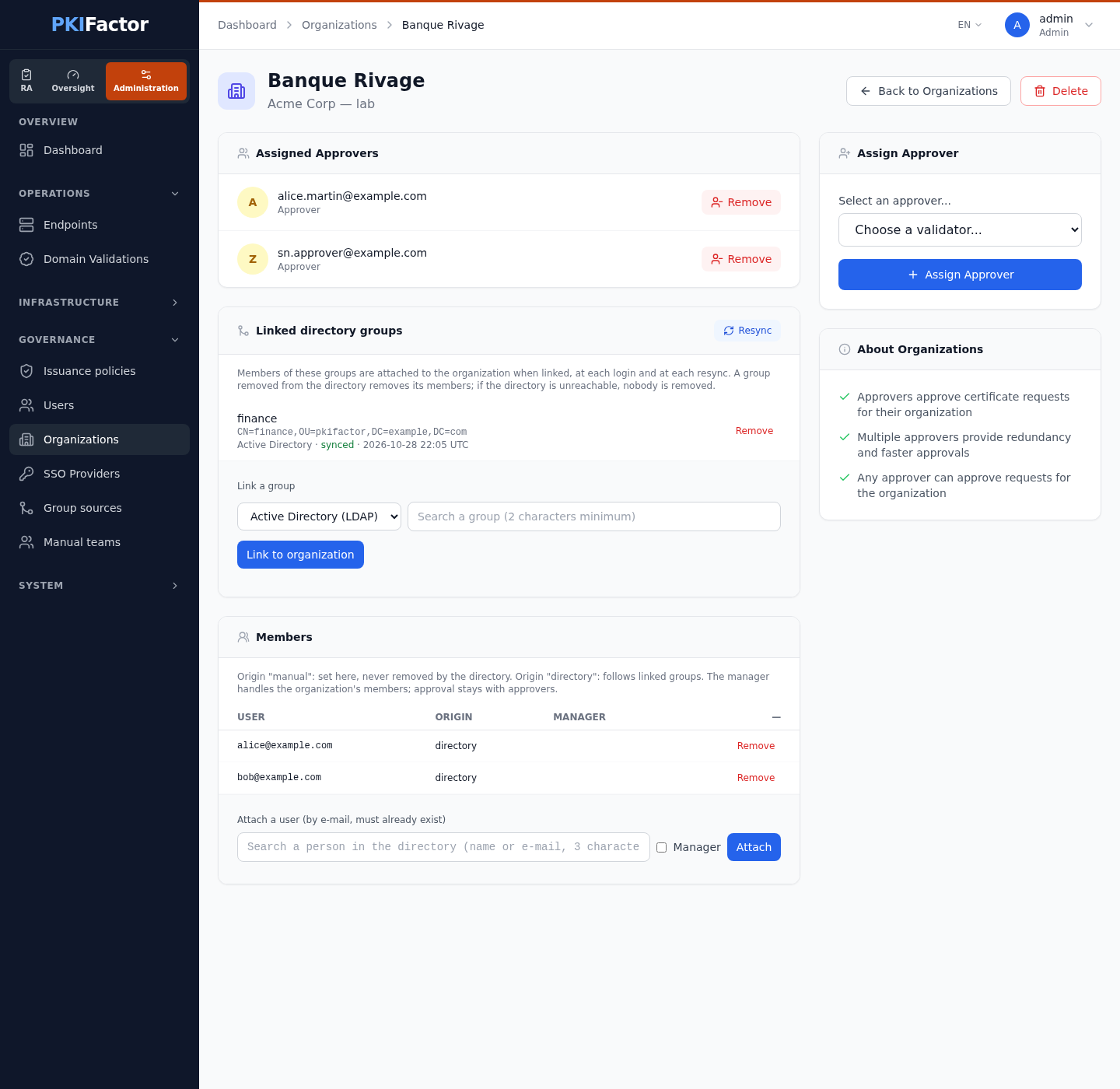
The organization page
| Panel | What you do there |
|---|---|
| Assigned Approvers | Assign Approver or remove one. Assign at least two for resilience: any of them can decide |
| Linked directory groups | Choose a source, search a group (2 characters minimum), Link to organization. For a token-group source, type the group value expected in the token. Resync forces a synchronization of this organization. Each link shows its status: synced, error or pending |
| Members | The list with the origin of each membership (manual or directory) and the Manager flag. Search a person in the directories (3 characters) or type an e-mail, tick Manager if needed, then Attach |
Removing the last link to a given source removes the members it brought, except those attached another way.
In the example below, the Active Directory group zz-finance is linked to the organization. Its members come in with the origin directory after Resync: Alice directly, Bob through the nested group zz-finance-paris. Carl, disabled in the directory, and Dan, without an e-mail address, are not attached. Nobody is created by the synchronization: Alice and Bob already had an account (otherwise they are attached at their first sign-in).
Delete an organization
Deleting is refused while the organization has pending approvals: decide them first. The certificates are kept but are no longer linked to the organization.
Organization managers
An organization manager handles the member list of their organization, without being an administrator. An administrator designates managers by attaching the person with Manager ticked.
| A manager can | A manager cannot |
|---|---|
| Attach members by e-mail, or a person found in a directory | Designate or remove a manager |
| Prepare access for a person who has never signed in, if a directory confirms the address | Prepare access for an address no directory knows (an administrator can) |
| Remove manual members and pending entries | Remove a member that comes from a directory (remove the person from the group instead) |
| Approve anything, create an organization or change a role |
The manager finds their organizations under Overview > My organizations (RA workspace), a menu entry shown only to people who manage at least one organization. An organization they do not manage answers "not found". The last manager of an organization cannot be removed: designate another one first.
Operators on their organizations
An operator with the org.teams permission also reaches My organizations for all the organizations they belong to and manages their members like a manager. With the org.validators permission, the page also shows a Validators panel: Appoint a validator among the accounts holding the Approver role, or Remove one. The last validator of an organization cannot be removed, since the organization could then approve nothing. Both actions are recorded (ORG_VALIDATOR_ASSIGNED, ORG_VALIDATOR_REMOVED). See Operator permissions.
Teams
A team is identified by the e-mail address of a distribution list. The requester gives it in the Team Email field of the request form. The same address receives the certificate's e-mail notifications (E-mail and notifications).
| How the team is resolved | Result |
|---|---|
| A team with this address already exists | It is reused and its members are refreshed |
| Otherwise, the active directory sources are queried in priority order | The first source that knows the address creates the team with the group's members |
| No source knows the address, and a Manual source exists | An empty team is created. The requester is not added: declaring an address does not make you a member |
Teams resolved from directories are read-only; you can see them in System > Settings, section Directory & Teams, tab Teams. A directory member without an account in PKIFactor is ignored, then attached automatically at their first sign-in.
Manual teams (without a directory)
For a deployment without a directory or SSO, open Governance > Manual teams (an operator with the org.teams permission finds it as Operations > Teams):
- New team: enter the Mailing list e-mail, an optional Label and, optionally, an Organization. An operator must choose one of their own organizations. An address already used by a directory team, or by a manual team of another organization, is refused.
- Open the team and Add a member (by e-mail); the account must already exist. An operator cannot add themselves to a team.
Members of a manual team attached to an organization are members of that organization, and see the certificates requested for the list. They are never overwritten by a synchronization. Deleting a team removes its members and the team link of its certificates; the certificates stay.
Via the API
# Organizations (routes without /api prefix: called under /api/v1/)
curl -s -b jar https://clm.example.com/api/v1/organizations
curl -s -b jar -X POST https://clm.example.com/api/v1/organizations \
  -H 'Content-Type: application/json' \
  -d '{"name": "Finance", "description": "Finance department", "validator_user_ids": [3, 7]}'

# Members (JSON)
curl -s -b jar https://clm.example.com/api/admin/organizations/12/members
curl -s -b jar -X POST https://clm.example.com/api/admin/organizations/12/members \
  -H 'Content-Type: application/json' -d '{"email": "bob@example.com", "is_manager": false}'

# Link a directory group, then force a resync
curl -s -b jar "https://clm.example.com/api/admin/group-sources/2/groups?q=fin"
curl -s -b jar -X POST https://clm.example.com/api/admin/organizations/12/group-links \
  -H 'Content-Type: application/json' \
  -d '{"source_id": 2, "external_id": "CN=Finance,OU=Groups,DC=corp,DC=example", "display_name": "Finance"}'
curl -s -b jar -X POST https://clm.example.com/api/admin/organizations/12/sync
curl -s -b jar -X POST https://clm.example.com/api/admin/organizations/sync-all

# Organization manager: organizations I manage
curl -s -b jar https://clm.example.com/api/my-organizations
external_id of a group is the value returned by the group search (DN for LDAP, object identifier for Entra ID, and so on). Changing an organization's name, description or active state is done with PUT /api/v1/organizations/{id}.
Audit
Every change is recorded: ADMIN_CREATE_ORG, ADMIN_UPDATE_ORG, ADMIN_DELETE_ORG, ADMIN_REMOVE_VALIDATOR, ORG_MEMBER_ADDED, ORG_MEMBER_PENDING_ADDED, ORG_MEMBER_PENDING_REMOVED, ORG_MEMBER_REMOVED, ORG_GROUP_LINK_CREATED, ORG_GROUP_LINK_REMOVED, ORG_SYNC_FORCED, ORG_VALIDATOR_ASSIGNED, ORG_VALIDATOR_REMOVED, TEAM_MANUAL_UPSERT, TEAM_MEMBER_ADDED, TEAM_MEMBER_REMOVED. See Audit trail.
Troubleshooting
| Symptom | Cause and fix |
|---|---|
| A user sees no profile at all | The user belongs to no organization. Link a group, attach the person, or check that the profile's visibility includes one of their organizations |
| A member sees a certificate but has no download, renew or revoke button | Expected: organization membership gives read access only. Add the person to the certificate's team, or make them owner |
| A team member from another entity cannot open the certificate | Expected: the team only counts inside the certificate's organization |
| A user lost an organization after a month | The membership came from a directory and has not been synchronized for 30 days. Check the link status on the organization page and click Resync |
| A group link shows "error" | The directory could not be read. Test the source under Directory sources; members are kept meanwhile |
| A manager cannot remove a member | The member comes from a directory: remove the person from the linked group |
| Deleting an organization is refused | Pending approvals remain. Decide or reject them first |