Key concepts
PKIFactor rests on a small number of notions. Understanding them makes every screen of the product predictable.
Find your way in the interface
The interface is divided into up to three workspaces. Each workspace has its own menu in the sidebar and its own version of the Dashboard.
| Workspace | What it is for | Title of its dashboard |
|---|---|---|
| RA | Daily work: requesting, approving, downloading and renewing certificates | Certificate tracking |
| Oversight | Following the estate and compliance: monitoring, discovery, Certificate Transparency, audit trail | Fleet status |
| Administration | Configuring the platform: authorities, profiles, users, settings | Platform health |
The workspace selector
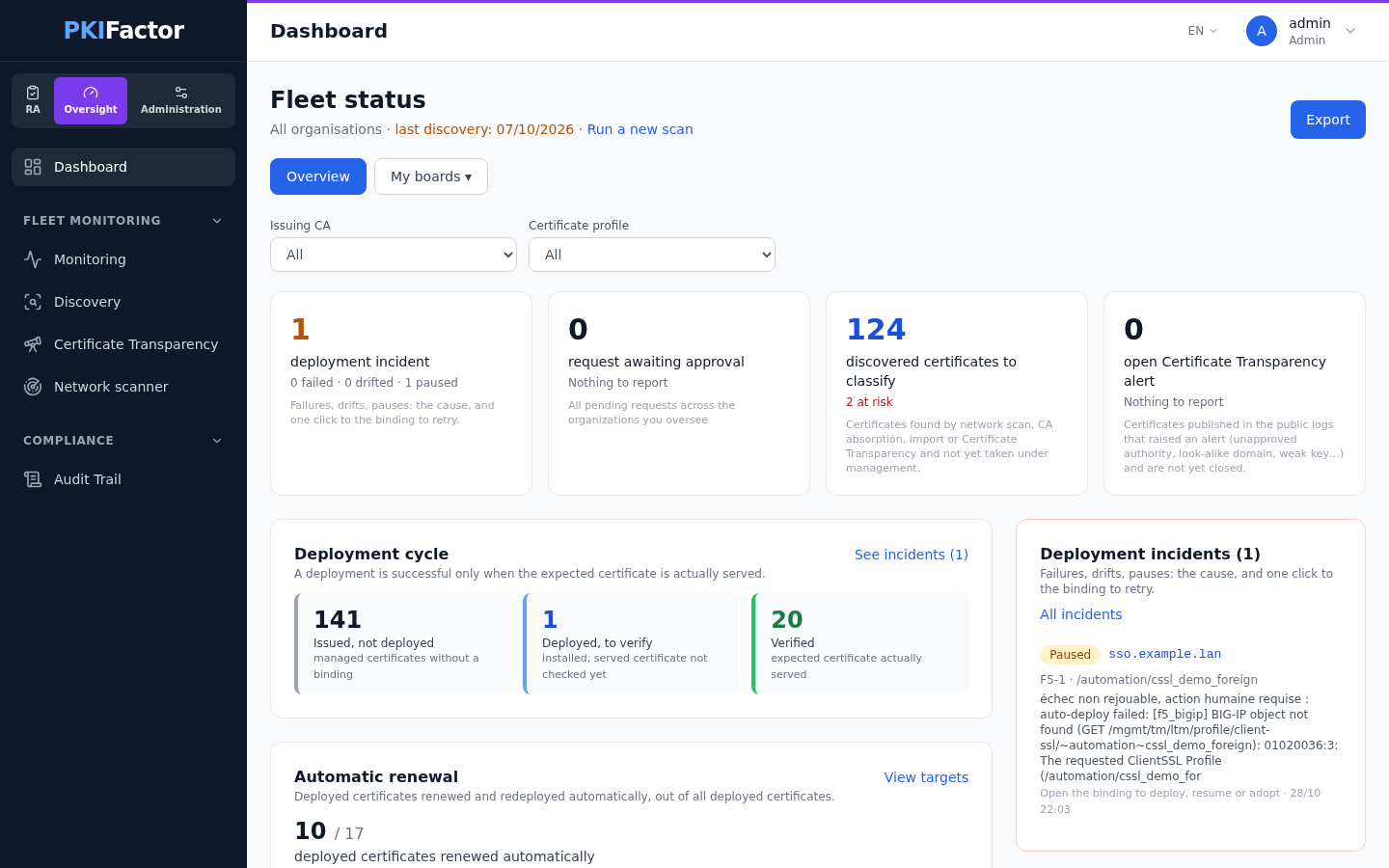
The selector sits at the top of the sidebar, under the PKIFactor name. It shows one button for each workspace you are allowed to open: RA (blue), Oversight (violet) and Administration (orange). The active button is coloured, and a line of the same colour runs along the top of the screen, so you always know where you are.
- Clicking a button opens the Dashboard of that workspace.
- Your browser remembers the last workspace you chose. If you are no longer allowed to open it (for example after a change of role), PKIFactor opens RA instead.
- When a link takes you to a page that belongs to another workspace (a card of the dashboard, for instance), the selector switches to that workspace by itself, so the menu always matches the page.
Each section heading of the menu folds and unfolds its entries; the browser remembers which sections you folded.
Who sees which workspace
| Role | Workspaces |
|---|---|
| Admin | RA, Oversight and Administration |
| Auditor | RA and Oversight |
| User, Approver, Operator | RA only: the selector is not shown, the menu is the RA menu |
Roles add up: a user who is both Approver and Auditor sees the Approver Inbox in RA and also has the Oversight workspace. Within a workspace, some entries depend on the role or on a setting, as listed below.
What each workspace contains
Dashboard is always the first entry of the menu, in every workspace.
RA workspace:
| Section | Entries |
|---|---|
| (top of the menu) | Dashboard, My certificates, All Certificates (administrators, and operators allowed to see all the certificates of their organizations), Trust Chains, My organizations (only for a user who manages at least one organization) |
| Requests | New Request, My requests, and Approvals for an administrator who is not an approver, only when the setting Approval decisions by a non-validator administrator allows it |
| Tools | CSR Generator, P12 / PFX Builder |
| Approver Inbox (Approver role) | Pending, Approved, Rejected, Delegations |
| Operations (Operator role, according to the operator's permissions) | Endpoints, Teams, Audit Trail |
Oversight workspace (administrators and auditors):
| Section | Entries |
|---|---|
| Fleet monitoring | Monitoring (administrators only), Discovery, Certificate Transparency, Network scanner (not shown to an auditor whose audit scope is limited to their own organizations) |
| Compliance | Audit Trail, and, when the cryptographic inventory is enabled, Crypto Inventory and Crypto report |
Administration workspace (administrators):
| Section | Entries |
|---|---|
| Overview | Dashboard |
| Operations | Endpoints (deployment targets), Domain Validations |
| Infrastructure | PKI Connectors, Certificate Profiles, ACME servers, Servers, DNS Providers, Service certificates, External accounts (EAB), Encryption, and Crypto catalogue when the cryptographic inventory is enabled |
| Governance | Issuance policies, Users, Organizations, SSO Providers, Group sources, Manual teams |
| PQC Transition (only when the cryptographic inventory is enabled) | CBOM, Crypto Inventory |
| System | Email Settings, Settings, License, Backup & Restore |
The cryptographic inventory entries are hidden on a standard installation; they appear when the platform runs with CBOM_ENABLED=true.
How this documentation names menu entries
This documentation writes a menu path as Section > Entry, for example Governance > Users. When the workspace is not obvious from the context, it is named first, for example: Oversight workspace, Fleet monitoring > Discovery. Tabs and buttons inside a page are written in bold after the entry, for example System > Settings, General section.
Users and roles
A user is a person (or a service account) with a role: User, Approver (also called validator), Operator, Auditor or Admin. A user can hold additional roles on top of the main one, and the rights add up. The role decides what the person may do (request, approve, operate, audit, administer) and which workspaces of the interface they see. See Users and roles.
Users sign in with a local password, a client certificate (mTLS) or single sign-on (OIDC). Service accounts (one per protocol gateway, one for ServiceNow) authenticate with an API key.
Organizations
An organization is a perimeter of authority: a subsidiary, a business unit, a customer. It answers the question what do you have authority over? Everything that matters is attached to an organization:
- the certificates issued under it;
- the certificate profiles it may use;
- its approval queue, worked by its approvers;
- its deployment targets.
Membership of an organization gives read access, with full detail, to all the certificates of that organization. It does not, by itself, allow acting on them.
A user becomes a member of an organization in four ways, in this order of preference:
- Directory groups linked to the organization (LDAP or Active Directory, Microsoft Entra ID, Keycloak, Okta, Google Workspace, SCIM). Several groups may point to the same organization.
- Groups carried by the OIDC token at sign-in, mapped to organizations.
- Manual attachment by an organization manager, who searches the directory or types an e-mail address. A person who has never signed in is attached pending until the first sign-in.
- Default organization of a whole source, for a single-entity customer.
Without any rule, a user belongs to no organization and sees no profile: access is denied by default.
Each organization has one or more approvers (who approve its requests) and one or more organization managers (who manage its member list, never its approvers or roles).
Teams
A team answers the question who is responsible for this certificate with me? It is identified by the e-mail address of a distribution list. A certificate requested on behalf of a team can be acted upon (renewed, revoked, its PKCS#12 downloaded) by any member of the team, in addition to its owner.
Two rules keep teams safe:
- to act, a person must be a member of the team and a member of the certificate's organization: a distribution list never lets anyone out of an organization;
- a team never grants the right to approve; approval belongs to the organization's approvers.
A certificate without a team can be acted upon by its owner and by administrators (and by operators within their organizations).
Certification authorities (PKI connectors)
A PKI connector links PKIFactor to an authority that actually signs certificates: Vault, Microsoft AD CS, EJBCA, ZetaCA, DigiCert, Sectigo, an ACME authority, a CMP authority or any REST authority. The authority keeps its own templates and policies (validity, key usages); PKIFactor reads them as PKI templates. See Certificate authorities.
Certificate profiles
A certificate profile (also called CLM profile) is what a requester chooses. It ties together:
- the authority and its PKI template;
- the allowed key algorithms (RSA, ECDSA, post-quantum);
- the subject fields: required, optional, fixed values that cannot be changed;
- domain rules for the common name;
- the approval requirement and the notification rules;
- the organizations allowed to use it (one, a list, or all);
- optionally, the automation protocols (ACME, EST, SCEP, CMP) that may issue through it.
Validity and key usages are decided by the authority's template; the profile only restricts. A crypto-agile profile groups two or three existing profiles (for example one classical and one post-quantum, each on its own authority) and issues one certificate from each for the same entity. See Certificate profiles and Crypto-agility.
Requests, approvals and certificates
A request follows the profile. If the profile requires approval, it waits in the organization's approval queue; otherwise it is issued immediately. Requests that come through an automation protocol skip manual approval: the protocol's own proof (an ACME challenge, an EST or CMP authentication) replaces it.
A certificate keeps its link to the profile, the organization, the owner and the team. Renewal reuses the same parameters. PKIFactor holds the private key only when it generated it on the server side, encrypted at rest, and lets you choose where keys live (browser, device, server, HSM).
Deployment targets and bindings
A deployment target is a device or a server that serves certificates: F5 BIG-IP, FortiWeb, PAN-OS, Check Point, Kemp LoadMaster, Windows IIS, a Linux server over SSH.
A binding links a certificate (or a profile) to one place on a target, for example a client-SSL profile of an F5 virtual server. The binding carries the automation level (full automatic, install, provide), the renewal threshold (for example 30 days before expiry), an optional intervention date, and a veto (pause) that a human can set at any time. After every push, PKIFactor verifies that the device serves the expected certificate. See How deployment works.
License
The license counts certificates by distinct common name: renewals and siblings of the same name count once; certificates that are only discovered do not count. Going over the contracted volume, or past the end date, blocks nothing: administrators are warned. See License.