Dashboards
The Dashboard page (Overview > Dashboard) has one overview per workspace, the same for every role, and the dashboards that each user composes. Every card is a number and a sentence that says what it counts; a click opens the list whose total is exactly that number. How to read these indicators, at the bottom of each overview, gives the definition of every figure shown.
| Workspace | Title of the overview | Shown to |
|---|---|---|
| RA | Certificate tracking: what expires and what waits, in your perimeter | Everyone. A user without the Oversight workspace sees only this overview |
| Oversight | Fleet status: deployment incidents, the deployment cycle, pending requests, discovery, Certificate Transparency alerts | Administrators and auditors |
| Administration | Platform health: components, backups, administrators, deployment targets, licence | Administrators |
The overview shown follows the workspace chosen at the top of the screen. Under the title, a line gives the perimeter (All organisations, Certificates of your organisations or Your certificates); for administrators in Oversight it also gives the date of the last discovery, with Run a new scan when it is more than 7 days old.
Administrators and operators also have an Export menu: a report of the certificates of their perimeter in PDF, CSV, XML or JSON.
Filters
In the RA and Oversight overviews, Issuing CA and Certificate profile filter the figures. The filter applies to certificates, expiries and the renewal queue, and is carried into the link of each card; the other cards cover the whole perimeter. Clear filters removes it.
RA: Certificate tracking
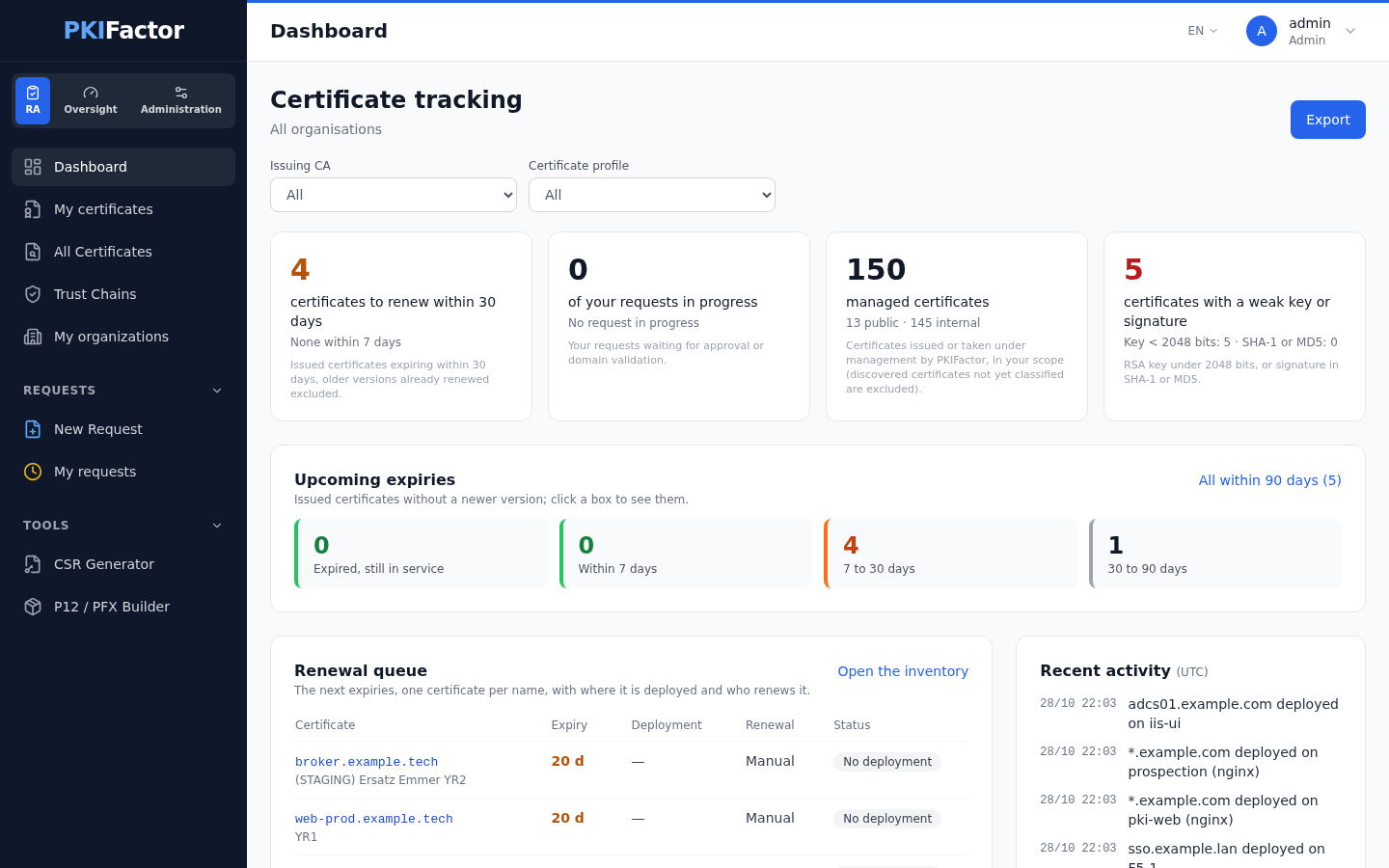
| Section | Content |
|---|---|
| Four cards | Certificates to renew within 30 days (with those within 7 days, or those already expired); requests waiting for your approval (validators) or your own requests in progress (other users); managed certificates (public and internal); certificates with a weak key or signature (RSA under 2048 bits, SHA-1 or MD5) |
| Upcoming expiries | Four boxes: Expired, still in service, Within 7 days, 7 to 30 days, 30 to 90 days. A box at zero is green. A certificate already replaced by a newer version is never counted |
| Renewal queue | The next expiries, one certificate per name, with the days left, where it is deployed, who renews it (Automatic, By the client (ACME), Manual) and the deployment status |
| Requests to approve | Validators only: the first pending requests, with Open the inbox |
| Recent activity | The last issuances, revocations, deployments and failed deployments (UTC) |
Oversight: Fleet status
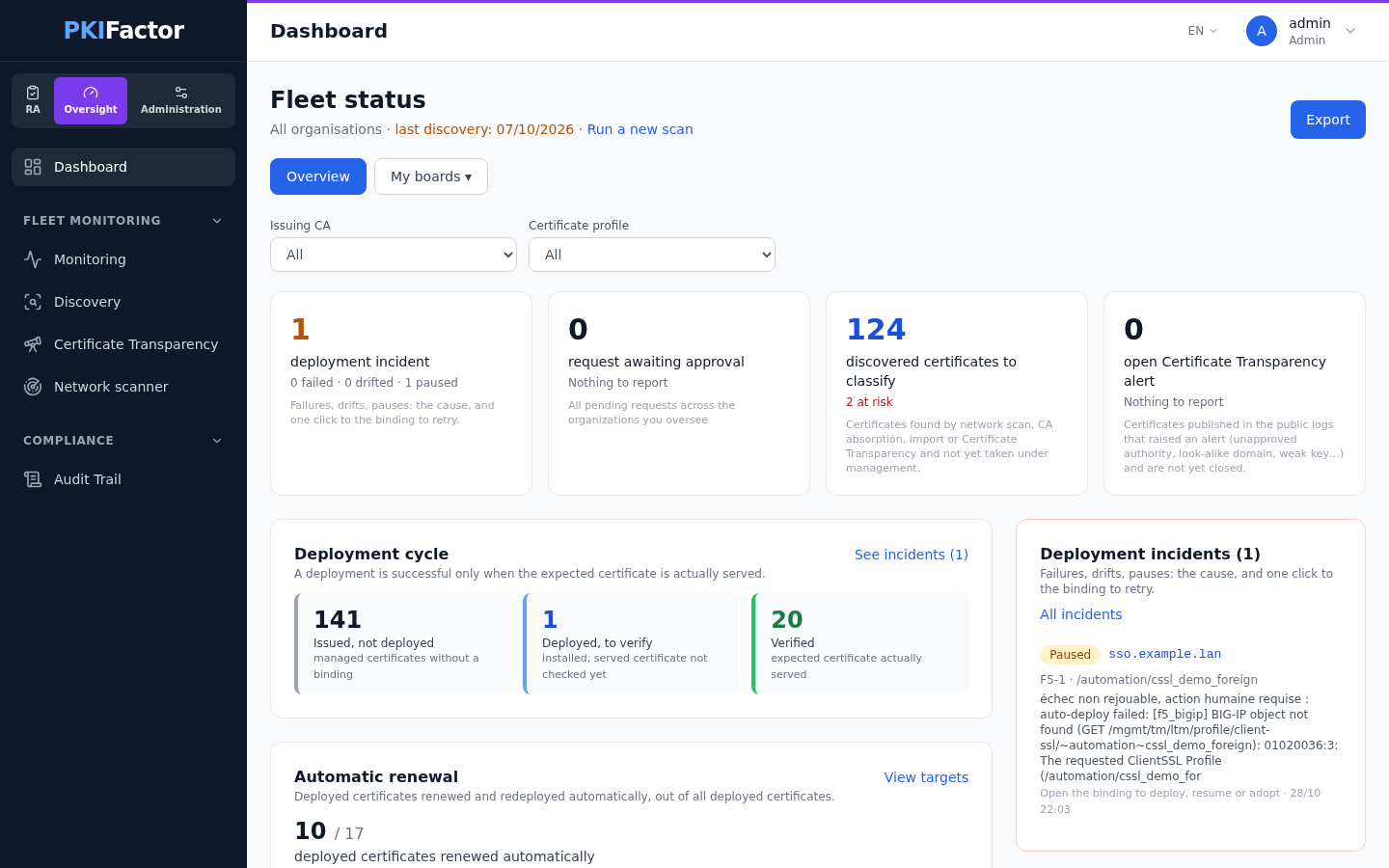
| Section | Content |
|---|---|
| Cards | Deployment incidents (failed, drifted, paused); requests awaiting approval in every organization you oversee, with the age of the oldest; discovered certificates to classify, with those at risk (administrators); open Certificate Transparency alerts, with those high or critical. Auditors see the number of managed certificates instead of the discovery card |
| Deployment cycle | Three steps: Issued, not deployed (managed certificates without a binding), Deployed, to verify (installed, served certificate not checked yet), Verified (expected certificate actually served). A deployment counts as a success only when verified |
| Automatic renewal | Deployed certificates renewed and redeployed automatically, out of all deployed certificates (administrators) |
| Deployment incidents | The last incidents with their cause; each one opens the binding, where Deploy now, Resume and Adopt (reclaim) are |
| Upcoming expiries, Renewal queue | As in RA, for the whole fleet |
| Discovery | Administrators: discovered certificates by source: network scan (with the number of TLS endpoints observed), CA absorption, import, Certificate Transparency |
| Recent activity | As in RA |
See incidents and All incidents open the Deployment incidents page. Its four views, Incidents, Issued, not deployed, Deployed, to verify and Verified, are the lists behind the figures of the cycle, with the state, the certificate, the target, the cause and the date; each row opens the binding. The page is reserved to administrators and auditors.
Administration: Platform health
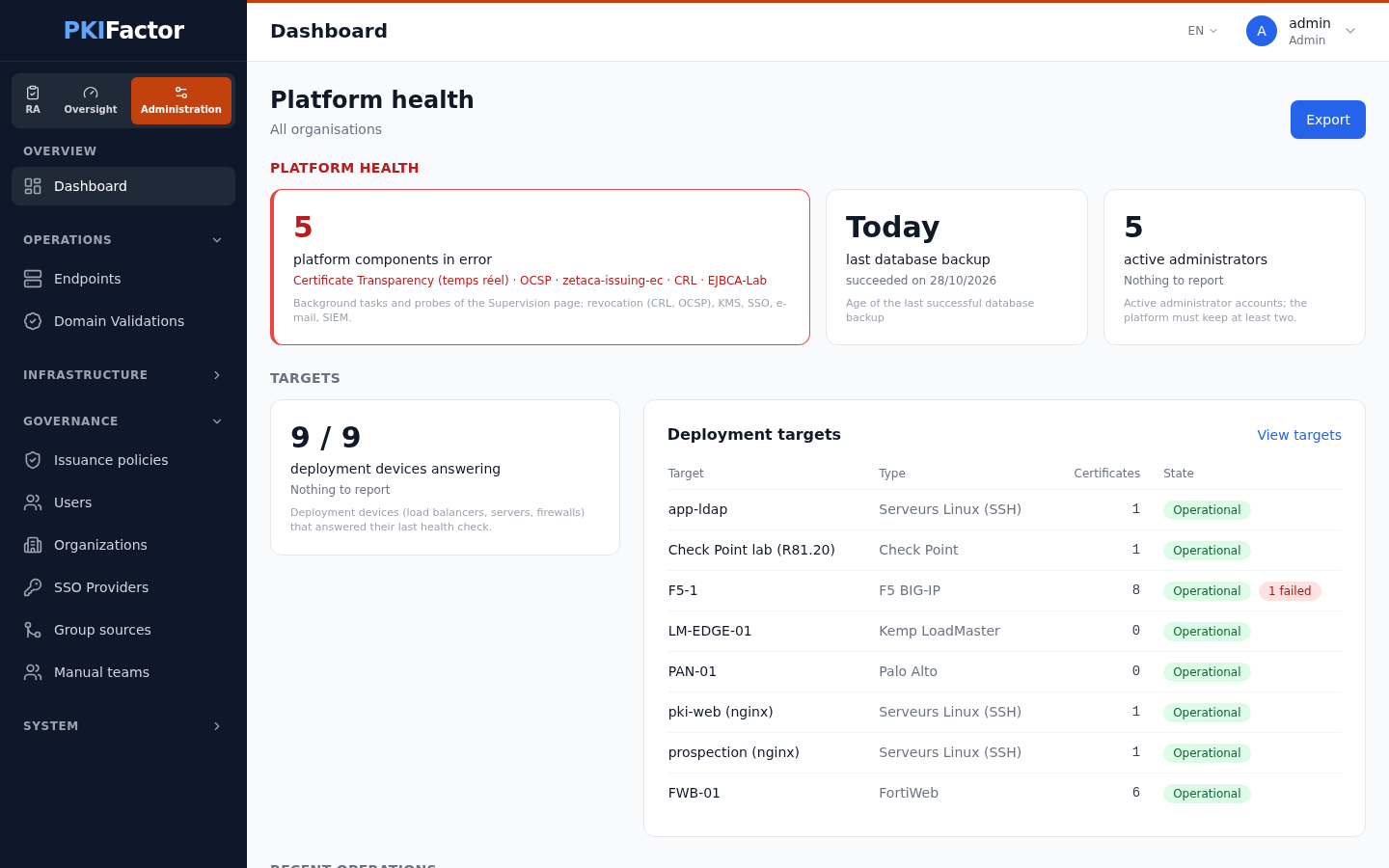
| Section | Content |
|---|---|
| Platform health | The components in error or to check (background workers and the probes of the Monitoring page: revocation, KMS, SSO, e-mail, SIEM), or all operational; the age of the last successful database backup (Today, or a number of days, in red from 2 days or after a failed attempt); the number of active administrators, with a tip when there is only one |
| Targets | Deployment targets that answered their last health check, and the list of targets with their type, number of certificates and state (Operational, Unreachable, Not tested, failed deployments) |
| Recent operations | Recent activity, then the number of certificates under licence (distinct common names) and the share of the licence used |
The Monitoring page
Monitoring (Oversight workspace, Fleet monitoring > Monitoring, administrators only) shows the live state of the background workers and of the components PKIFactor depends on, with Refresh all. It is described in Monitoring and health. The Platform health card of the Administration overview opens it.
Personal dashboards
Customizable indicators arrived in version 1.8.8; since then every user can create several named dashboards, each with its own indicators and filters. They are in the My boards ▾ menu next to Overview: in the Oversight workspace for administrators and auditors, on the only dashboard for the other roles. The menu lists your dashboards and + Create a dashboard; its button carries the name of the dashboard open. The browser remembers the last view opened.
What the indicators count
Indicators count certificates of the CLM inventory only: discovered certificates that were never taken under management are excluded (they have their own place, the Discovery workspace).
Each user sees the same perimeter as elsewhere in PKIFactor:
| Role | Perimeter |
|---|---|
| Administrator | The whole CLM inventory |
| Other roles | The certificates of the user's organizations; a user without organization sees only their own certificates |
Create and edit a dashboard
- On the Dashboard page, open My boards ▾, click + Create a dashboard and give it a name (for example Expiry follow-up). The new dashboard opens in edit mode.
- Click Add an indicator, then either click one of the Ready-made indicators or Create your own indicator.
- Optionally click Dashboard filters to add filters that apply to every indicator of the dashboard, in addition to each indicator's own filters.
- Click Done. Every change is saved immediately to your account, on the server: you find your dashboards on any workstation.
In edit mode (Edit), each indicator has Move left, Move right, Edit (not for the Discovery indicator) and Remove, and the dashboard has Rename and Delete dashboard (not offered when it is your only dashboard). Restore the default dashboard, at the bottom, deletes all your dashboards and recreates the default one.
A new account starts with one dashboard containing three ready-made indicators: expirations over 12 months, by issuing authority, by key algorithm. In this version that dashboard is named Mon tableau whatever the interface language; use Rename to change it.
Ready-made indicators
| Indicator | Definition |
|---|---|
| Expirations over 12 months | Issued certificates expiring within 365 days, grouped by month of expiry |
| By issuing authority | Issued certificates grouped by the CN of the issuer |
| By key algorithm | Issued certificates grouped by key algorithm |
| By issuance profile | Issued certificates grouped by profile |
| By organization | Issued certificates grouped by organization |
| By status | All certificates grouped by status |
| Discovery | Counts from the Discovery workspace: to classify, at risk, self-signed, CA outside trust chains. Offered to administrators and auditors only; a click opens the workspace |
A ready-made indicator can be edited after it is added, like any other, except Discovery, which can only be moved or removed.
Your own indicator
| Field | Content |
|---|---|
| Title | Free text, up to 80 characters, for example RSA certificates expiring in 2027 |
| Group by | A field from the list below, or None (a single total) |
| Display | Bars or Number. Without grouping the indicator always shows a number |
| Width | Normal or Wide (two columns); an indicator grouped by expiry date is wide by default |
| Indicator filters | Add a filter: field, operator, value. Quick filters add a common filter in one click: Expires within 30 days, Expires within 90 days, Post-quantum, RSA key, Revoked, Issued |
Without any filter the indicator counts every certificate in your perimeter.
How groups are displayed:
- Bar charts show the 8 largest groups; the others are added together under
…. Clicking a bar opens the matching certificates. - Date fields are grouped by month (at most the last 36 months shown).
- Validity period (days) is grouped in bands: ≤ 90, ≤ 200, ≤ 398, > 398.
- Empty values appear as a dash.
Fields
| Field | Type | Can group by |
|---|---|---|
| Issuing authority (CN of the issuer) | Text | Yes |
| Status | Text | Yes |
| Key algorithm | Text | Yes |
| Signature algorithm | Text | Yes |
| Source | Text | Yes |
| Usage class | Text | Yes |
| Country | Text | Yes |
| Subject organization | Text | Yes |
| Organizational unit | Text | Yes |
| Revocation status | Text | Yes |
| Common name (CN) | Text | No (filter only) |
| Key size | Number | Yes |
| Validity period (days) | Number | Yes (bands) |
| Post-quantum | Yes / no | Yes |
| Expiry date | Date | Yes (by month) |
| Start of validity | Date | No (filter only) |
| Request date | Date | Yes (by month) |
| Issuance profile | Reference (by name) | Yes |
| Organization | Reference (by name) | Yes |
| PKI connector | Reference (by name) | Yes |
Operators
| Field type | Operators |
|---|---|
| Text | is, is not, contains, is one of (comma-separated values) |
| Number | is, is not, is less than, is greater than |
| Date | before, from, within the next N days (a negative number looks into the past) |
| Yes / no | is |
| Reference | is, is not, is one of (by name) |
Text comparisons ignore case. Dates are entered as YYYY-MM-DD.
Sharing
Dashboards are personal. There is no sharing between users: each account composes its own, and an administrator cannot publish a dashboard to others. Two users who build the same indicator can see different numbers if their perimeters differ.
Limits
| Item | Maximum |
|---|---|
| Dashboards per user | 12 |
| Indicators per dashboard | 24 |
| Filters per indicator | 8 |
| Filters per dashboard | 8 |
| Values in is one of | 20 |
| Length of a filter value | 120 characters |
| Dashboard name | 60 characters |
The list of fields and operators is fixed on the server. The browser only names fields; it never sends an expression, and values are passed to the database as parameters.
Status
The indicators were validated read only on the appliance's data when they were delivered, and the composable dashboards were exercised in a real browser against PostgreSQL. Field validation, filters and saving are covered by unit tests.
Troubleshooting
| Symptom | Cause and fix |
|---|---|
| Maximum number of dashboards reached. | 12 dashboards already exist; delete one |
| Could not save: followed by a reason | A value is invalid (for example a date not in YYYY-MM-DD, a non-numeric value for a number field, more than 8 filters); correct the indicator |
| Could not compute in an indicator | The query failed; reload the page, then edit the indicator's filters |
| No data | No certificate in your perimeter matches the filters |
| An indicator shows fewer certificates than a colleague sees | Your perimeter is smaller (organizations) |
| Discovered certificates are missing from the counts | Expected: indicators count the CLM inventory; take the certificates under management or use the Discovery workspace |
Via the API
# Field catalog, then your dashboards (with the ready-made indicators)
curl -s -b jar https://clm.example.com/api/dashboard/fields
curl -s -b jar https://clm.example.com/api/dashboard/boards

# Compute one indicator: issued RSA certificates expiring within 90 days, by profile
curl -s -b jar -X POST https://clm.example.com/api/dashboard/query \
  -H "Content-Type: application/json" \
  -d '{"group_by": "template",
       "filters": [{"field": "status", "op": "eq", "value": "ISSUED"},
                   {"field": "key_algorithm", "op": "contains", "value": "RSA"},
                   {"field": "not_after", "op": "within_days", "value": "90"}]}'

# Values present for a field (suggestions for a filter)
curl -s -b jar "https://clm.example.com/api/dashboard/values?field=issuer"

# Replace all your dashboards (JSON), or restore the default one
curl -s -b jar -X PUT https://clm.example.com/api/dashboard/boards \
  -H "Content-Type: application/json" \
  -d '{"active": "exp", "boards": [{"id": "exp", "name": "Expiry follow-up", "filters": [],
       "widgets": [{"id": "w1", "type": "chart", "title": "Expiring in 30 days",
                    "group_by": null, "chart": "number",
                    "filters": [{"field": "not_after", "op": "within_days", "value": "30"}]}]}]}'
curl -s -b jar -X DELETE https://clm.example.com/api/dashboard/boards
eq, ne, contains, in, lt, gt, before, after, within_days. For in, value is a JSON list. These calls act on the signed-in account only.