Discovery workspace
PKIFactor keeps two separate sets of certificates:
| Set | Contains | Shown in |
|---|---|---|
| CLM inventory | Certificates issued through PKIFactor, and certificates taken under management | All Certificates, reports, dashboards, My Certificates |
| Discovery | Certificates that come from outside: network scans, absorption from a CA connector, file imports, Certificate Transparency | Discovery only |
Since version 1.8.7 discovered certificates no longer mix with the inventory. They wait in the Discovery workspace, classified by trust origin and risk, until an administrator takes them under management or leaves them there.
Who can use it
| Role | Can |
|---|---|
| Administrator | Read the workspace and Take under management |
| Auditor | Read only. An auditor limited to some organizations sees only the discovered certificates of those organizations (a discovered certificate without organization stays hidden from them) |
Operators, validators and users do not see the workspace. Open it from the Oversight workspace, Fleet monitoring > Discovery. Administrators also see a card on the Oversight dashboard with the number of discovered certificates to classify and how many are at risk, and a Discovery section with the counts by source (Dashboards).
Where discovered certificates come from
| Source (filter label) | How certificates arrive |
|---|---|
| Network scan | A manual or scheduled scan of the network scanner records every certificate whose fingerprint PKIFactor does not know yet |
| CA absorption | Absorb Certificates on the page of a PKI connector (not offered for Sectigo and DigiCert connectors): a preview lists what the CA holds, then the import writes the certificates. Options: maximum number, issued after a date, skip revoked, skip certificates expired for more than N days |
| Import | Import from file on the page of a PKI connector: PEM, DER, P7B or CRT files, up to 50 files of 10 MB each; bundles are split, duplicates (same SHA-256 fingerprint) are skipped. Also the CSV inventory import, available through the API only (see below) |
| Certificate Transparency | Certificates published in the public CT logs for your watched domains (since 1.8.31), see Certificate Transparency monitoring |
A certificate already known by its fingerprint is not added twice.
Read the workspace
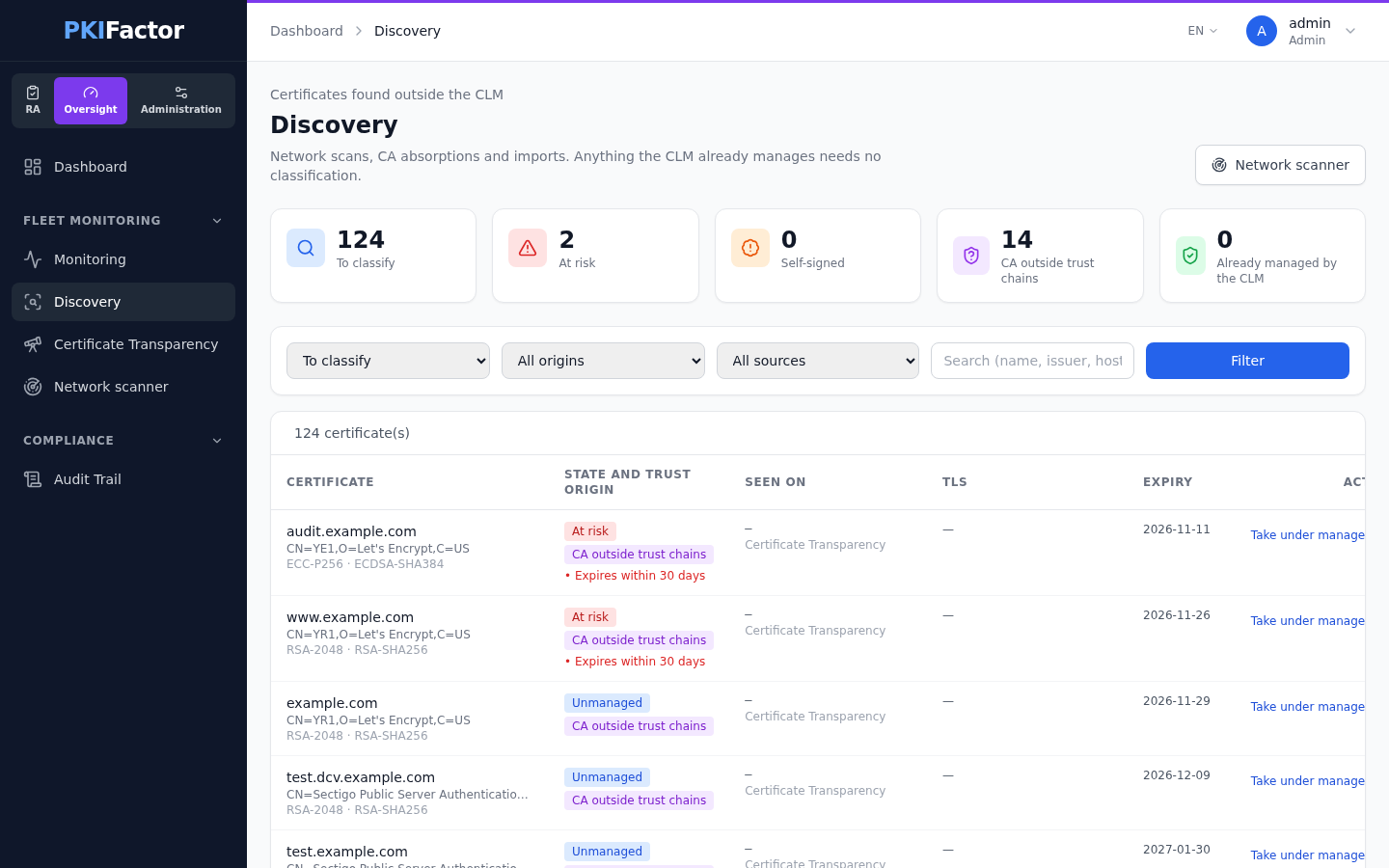
The page opens on the certificates To classify (unmanaged or at risk). Five cards at the top give the counts and act as shortcuts:
| Card | Counts |
|---|---|
| To classify | Unmanaged plus at risk |
| At risk | Certificates with at least one risk finding |
| Self-signed | Self-signed certificates among those to classify |
| CA outside trust chains | Certificates to classify whose issuer is not one of your CAs |
| Already managed by the CLM | Discovered certificates whose fingerprint is also in the CLM inventory |
Filters: state, trust origin, source, and a text search on name, issuer and host. The table shows, for each certificate: name, issuer, key and signature algorithms, state and trust origin with the risk findings, where it was last seen (host:port) and its source, the TLS data from the latest scan (negotiated version, minimum accepted version, cipher suite), and the expiry date.
Trust origin
| Origin | Meaning |
|---|---|
| Trusted CA | The signature verifies against a CA of your trust chains: the CA chains of the PKI connectors and the standalone trust chains. A self-signed root that is itself in those chains also counts as trusted |
| Self-signed | Subject equals issuer and the certificate verifies with its own key |
| CA outside trust chains | Signed by a CA that is not in your chains, or whose signature does not verify |
| Unknown | The certificate body is not stored (for example a CSV import without PEM), so no check is possible |
The check verifies the signature against the CA certificate, not only the issuer name.
State and risk findings
| State | Meaning |
|---|---|
| Managed by the CLM | The same fingerprint exists in the CLM inventory: nothing to classify |
| At risk | At least one finding below |
| Unmanaged | No finding |
| Finding | Rule |
|---|---|
| Expired | Expiry date in the past |
| Expires within 30 days | Expiry date within 30 days |
| Key too short | RSA key shorter than 2048 bits |
| Weak signature (SHA-1, MD5) | Certificate signed with SHA-1 or MD5 |
| TLS 1.0 or 1.1 still accepted | The latest scan that saw this certificate found the service still accepting TLS 1.0 or 1.1 |
Take a certificate under management
Take under management moves an existing certificate into the CLM inventory as it is, without reissuing it.
- On the row, click Take under management (the button is not shown for certificates already managed).
- Choose the issuance profile that will be used to renew it.
- Confirm.
What changes:
- The certificate leaves the Discovery workspace and appears in All Certificates.
- It is attached to the chosen profile. If it has no organization yet, it takes the profile's organization.
- Its origin (scan, absorption or import), the administrator and the date are kept in the certificate's record.
- An audit event
CERTIFICATE_ADOPTEDis recorded (and forwarded to the SIEM when configured).
To replace a discovered certificate with a new one issued by PKIFactor instead, use Renew from a profile on the scan detail page: see TLS scanning.
Status
The classification was validated read only on the appliance's data when the workspace was delivered (150 managed certificates, 110 absorbed certificates classified as trusted CA and unmanaged). The classification rules (trust origin, findings, state) are covered by unit tests. Take under management has no automated test and no recorded test campaign, in particular for the renewal of an adopted certificate against a real CA.
Limits
- The workspace classifies at most the 5,000 discovered certificates closest to expiry, and the page displays at most 500 rows (the count above the table gives the total). Narrow the list with the filters.
- The trust origin depends on the CA chains you have declared. Add the missing chains (PKI connectors or trust chains) before concluding that a CA is outside your chains.
- The TLS columns and the TLS 1.0 or 1.1 still accepted finding exist only for certificates seen by a scan.
- The network scanner's detail page uses a wider notion of "managed" (it also counts imported and absorbed certificates). The Discovery workspace is the reference.
Troubleshooting
| Symptom | Cause and fix |
|---|---|
| A certificate found by a scan is not in the workspace | Its fingerprint was already known (CLM inventory or earlier discovery) |
| Ce certificat est déjà dans l'inventaire CLM (409) | It was already taken under management; reload the page |
| Profil d'émission introuvable (404) | The profile was deleted in the meantime; choose another one |
| An internal CA's certificates show CA outside trust chains | That CA's chain is not declared; add it to the PKI connector or as a trust chain |
| Unknown trust origin | The record has no certificate body (CSV import); import the PEM file instead |
| The page is empty | The default filter shows only certificates to classify; clear the filters or open Already managed by the CLM |
Via the API
# Counters, then the list (filters: state, trust, source_kind, search, limit, offset)
curl -s -b jar https://clm.example.com/api/discovery/summary
curl -s -b jar "https://clm.example.com/api/discovery?state=at_risk&trust=untrusted_ca&limit=100"

# Take certificate 812 under management with profile 3
curl -s -b jar -X POST https://clm.example.com/api/discovery/812/adopt \
  -H "Content-Type: application/json" -d '{"template_id": 3}'

# Import certificate files into PKI connector 2 (multipart, field "files")
curl -s -b jar -X POST https://clm.example.com/api/v1/pkis/2/import-certificates \
  -F "files=@web01.pem" -F "files=@bundle.p7b"

# CSV inventory import (API only): get the template, fill it, upload it
curl -s -b jar -o template.csv https://clm.example.com/api/v1/pkis/import-inventory-csv/template
curl -s -b jar -X POST https://clm.example.com/api/v1/pkis/2/import-inventory-csv \
  -F "file=@inventory.csv"
state takes managed, unmanaged, at_risk or to_classify; trust takes self_signed, trusted_ca, untrusted_ca or unknown; source_kind takes scan, absorption, import, equipment, ct or other; limit is at most 500. Reading is open to administrators and auditors; adopt is reserved to administrators.
The CSV columns are common_name (required), serial_number, not_before, not_after, subject_alternative_names, key_algorithm, public_key_size, issuer, owner_email, organization, installed_system and source; at most 5,000 rows. Rows are deduplicated by serial number, or by name and expiry date. Leave source empty or set it to IMPORTED: another value would place the row outside the Discovery workspace.