Managing certificates
This page covers everything you do with a certificate once it is requested: finding it, reading its details, downloading it, renewing it, revoking it, handing it over to a colleague, and the expiry alerts. To request one, see Requesting certificates.
The certificate list
Open Overview > My certificates in the side menu (RA workspace). The My Certificates page has two tabs:
| Tab | Shows | You can act on |
|---|---|---|
| My certificates | The certificates you own, and those attached to your teams | Yours, and your teams' certificates that belong to one of your organizations |
| My organization | Every certificate attached to your organizations, whoever owns it | Only those you could already act on. The others are read-only: the server refuses downloads, renewals and revocations |
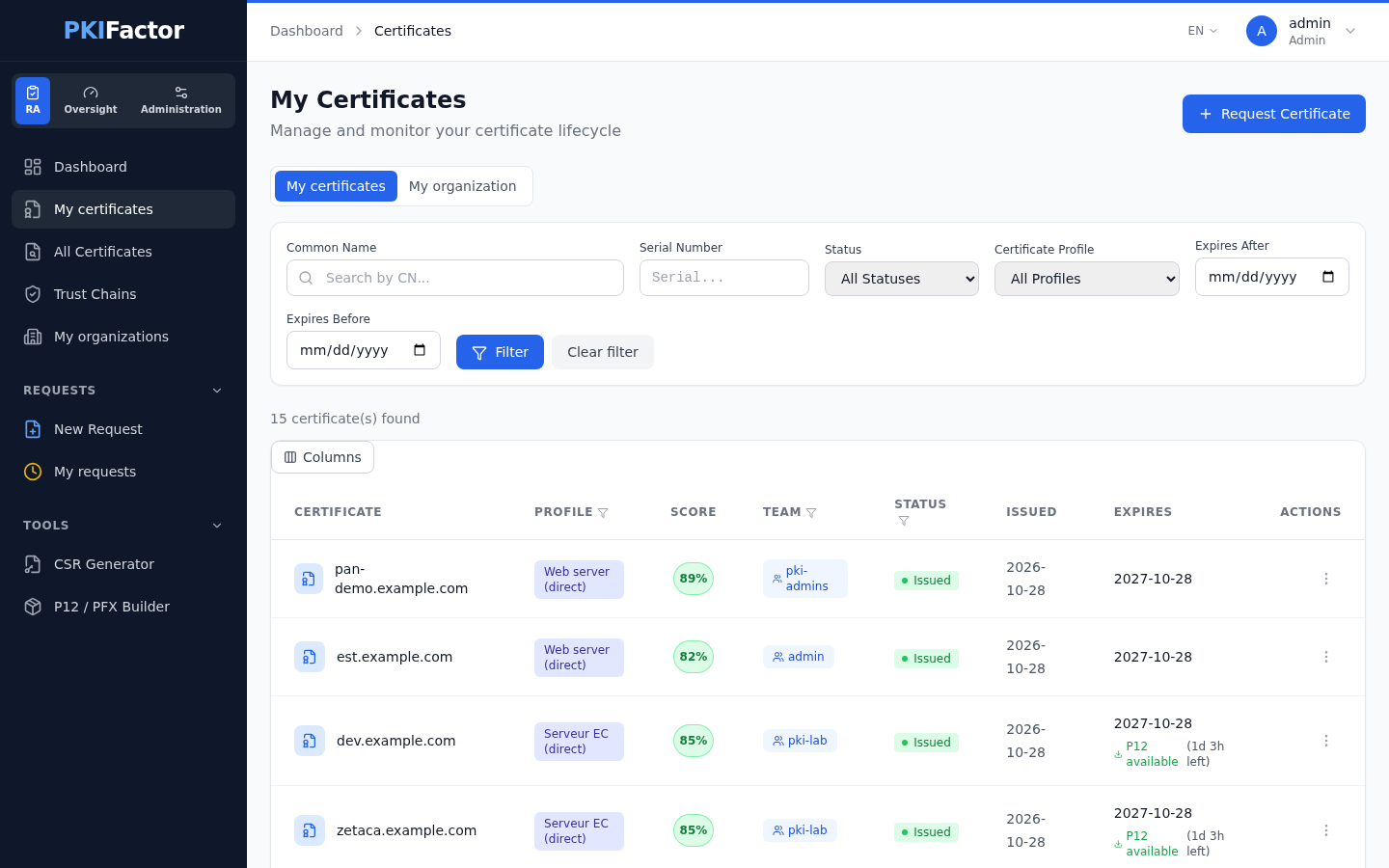
Captured with an administrator account: the Score column is shown to administrators only.
Filter the list
| Filter | Behavior |
|---|---|
| Common Name | Part of the common name, case-insensitive |
| Serial Number | Part of the serial number |
| Status | Issued, Pending Approval, Pending DCV, Rejected, Revoked, Expired |
| Certificate Profile | The profile used for the request |
| Expires After, Expires Before | Expiry date range |
Click Filter to apply, Clear filter to reset. The number of results is shown above the table; filters are kept in the address and when you change page (25 certificates per page). The dashboard's links to expiring certificates open the list filtered on Expiring within 30 days; its other counters open the list with a banner naming the filter (for example Weak key or signature), which Remove this filter clears. Requests > My requests opens the list filtered on Pending Approval.
Columns and badges
| Column | Content |
|---|---|
| Certificate | Common name and serial number; a PQC DUAL, PQC COMPOSITE or PQC HYBRID badge for post-quantum certificates |
| Profile | The profile used |
| Team | The team the certificate is attached to, or a dash if none |
| Status | Colored badge. Pending Approval adds Awaiting validation |
| Issued, Expires | Validity dates. Under the expiry date, P12 available (with the time left) or P12 expired for certificates whose key PKIFactor generated |
| Actions | The ⋮ menu |
The Columns button above the table adds optional columns (Requester, Organization, PKI connector, Issuing CA, Key algorithm, Usage) or removes them; Default columns restores the initial set. Most columns can also be filtered on one or more of their values from their header (Filter, then Apply; Clear removes it). Your choice of columns is kept by your browser.
The actions menu
| Action | Offered when |
|---|---|
| Details | Always |
| Download Certificate | Status Issued |
| Download PKCS#12 | Status Issued and P12 available |
| Collect Certificate | Status Pending DCV |
| Renew | Status Issued or Expired (see Renew a certificate for expired certificates) |
| Transfer ownership, Update team email | Always; they open the detail page with the matching dialog |
| Revoke | Status Issued; opens a list of reasons |
After a request, a renewal or a revocation, a banner at the top of the list says what happened (issued, waiting for approval, revoked, or revoked in PKIFactor only, see Revoke a certificate).
The certificate detail page
Click a common name, or Details. The page shows:
- General Information: status, Live status (OCSP) (click Check now to query the authority's OCSP responder), serial number, validity dates, algorithm, signature algorithm, Private key (held by PKIFactor, encrypted at rest; not held because you provided a CSR; or generated by an ACME client), Certificate Profile, PKI Connector, Team, SHA-1 thumbprint, SHA-256 fingerprint, subject and issuer;
- Renewal lineage: the certificate it was renewed from, and the one that replaced it;
- X.509 Extensions: key usage, extended key usage, subject alternative names, basic constraints, key identifiers, CRL distribution points, OCSP responders, CA issuers;
- Certificate Chain: the chain from the leaf to the root, each certificate downloadable on its own, and Full Chain (PEM);
- Fleet: points of presence: where the certificate is in service, from the deployment bindings of its renewal lineage and from what the TLS scanner saw. Each line gives the endpoint, the placement and a status (up to date, awaiting verification, drift, error, paused, other version, out of date, or served, no binding when the scanner sees it on an endpoint that no binding covers, so PKIFactor will not renew it there). See How deployment works.
Depending on the certificate, the page also shows:
| Block | When |
|---|---|
| Domain Control Validation Required | Status Pending DCV: the CA order and Check & Collect |
| Issued identity ≠ requested | The CA rewrote the subject or the names, so the certificate does not cover every requested name (for example an AD CS template set to build the subject from the directory). It lists the requested, issued and missing names |
| Dual Certificate (PQC + Classical) | A dual certificate: the two linked certificates, with View classical certificate / View PQC certificate to switch between them |
| Crypto-agile group | The certificate belongs to a group of sibling certificates issued for the same entity; View opens each one |
| Composite or hybrid details | A composite or hybrid (alternative signature) certificate: its strategy and its two algorithms |
| Security Score and PQC Risk | Administrators only: a score out of 100 (algorithm, signature, validity, expiry, key hygiene, chain, compliance) and the exposure of the key algorithm to quantum attacks |
At the top, Download PEM and Download P12 (the second only for the owner and the certificate's team), Renew now for a profile linked to a public ACME authority, and Deploy to multiple servers, which jumps to the fleet block; at the bottom, Renew and Revoke. The ⋮ menu holds Transfer ownership and Update team email, and, for administrators on an issued certificate, Deploy to a target.
From the fleet block, administrators and operators can Redeploy to the whole fleet (replay the deployment on every active binding). When a binding was paused because its device now answers at another address, the owner and the certificate's team can Reactivate it, which accepts that the private key goes to the new address. Administrators can also Bind to other servers: tick Linux servers, choose the Site, the Automation level and Automatic renewal, then Bind and deploy.
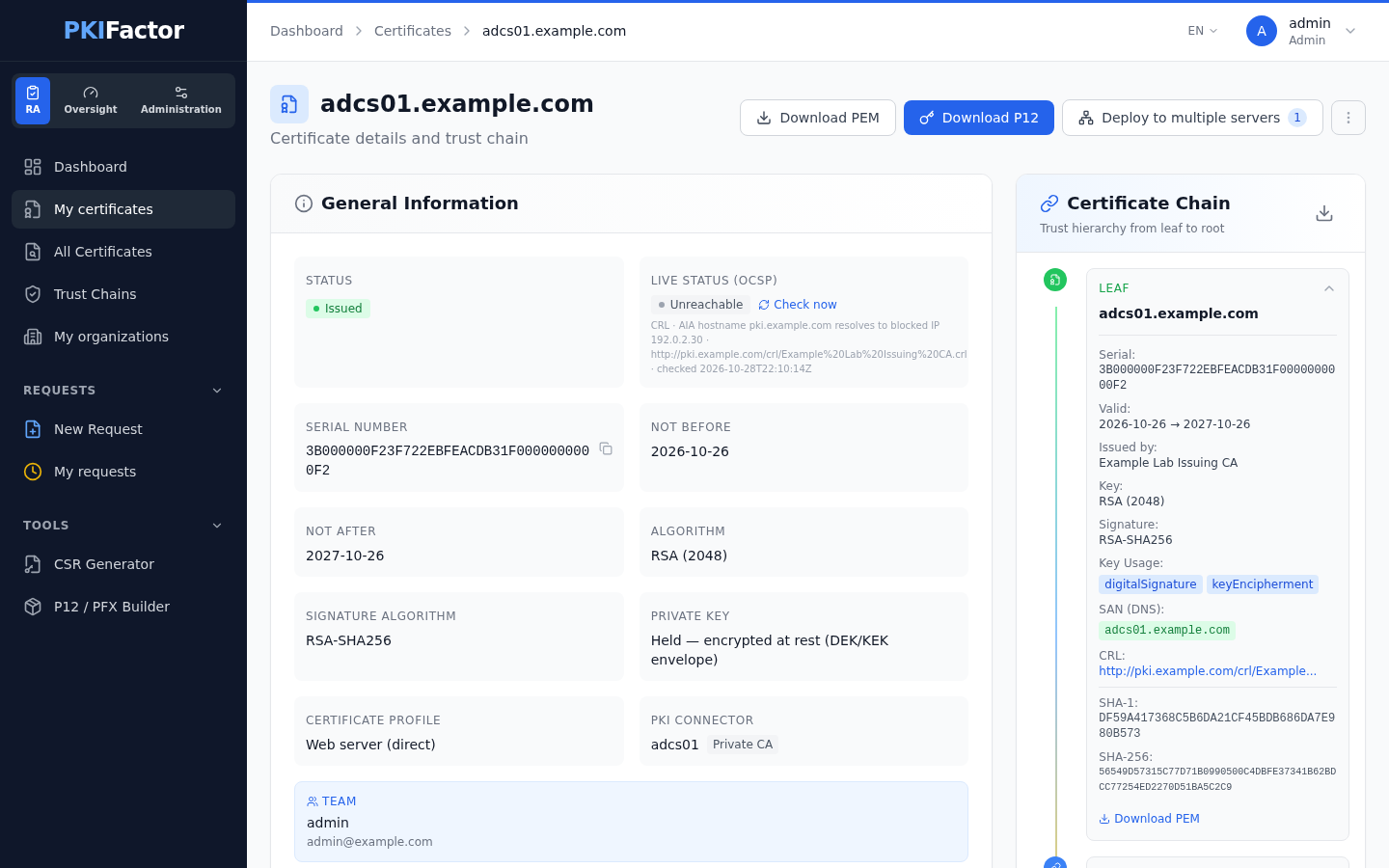
Captured with an administrator account. The Cryptographic posture block appears only when the CBOM module is enabled.
A member of the organization who is neither the owner nor in the certificate's team sees the page read-only, with the notice You can see this certificate because it belongs to your organization. Read-only: only its owner and team can renew, revoke or download it.
Who can act on a certificate
| Who | View | Renew, revoke, download the certificate | Download the private key (PKCS#12) | Transfer, change the team e-mail |
|---|---|---|---|---|
| The owner | Yes | Yes | Yes | Yes |
| A member of the certificate's team, who is also a member of the certificate's organization | Yes | Yes (1) | Yes (1) | Yes |
| Another member of the certificate's organization | Yes (read-only) | No | No | No |
| A validator of the certificate's organization | Yes (read-only) | No | No | No |
| An operator of the certificate's organization | Yes (2) | Yes (2) | No | No |
| An administrator | Yes | Yes | No | Yes |
(1) A member added by hand to a team after the certificate was first issued can revoke it and download the certificate, but cannot renew it nor download its private key (this also holds for its renewals); members that come from a directory group, or that were in the team before, keep every right. (2) Within the operator's permissions (Operator permissions).
See Users and roles and Organizations and teams.
Download a certificate
| Format | Button | File | Contains |
|---|---|---|---|
| Certificate, PEM | Download Certificate (list) or Download PEM (detail) | <common name>.crt |
The certificate only |
| PKCS#12 | Download PKCS#12 (list) or Download P12 (detail) | <common name>.p12 |
The private key and the certificate, protected by the PKCS#12 password you set at the request. The chain is not included: download it separately |
| Full chain, PEM | Full Chain (PEM) (detail, Certificate Chain) | <common name>_chain.pem |
The certificates of the chain as stored by PKIFactor, concatenated |
| One certificate of the chain | Download button of that certificate (detail) | <its common name>.pem |
That certificate only |
Downloads require the status Issued.
PKCS#12 availability
The PKCS#12 file exists only when PKIFactor generated the key (Generate Key Pair mode). It can be downloaded for a limited time after issuance: 48 hours by default. The administrator changes this window in the Administration workspace, System > Settings, field P12 Download Availability (hours); 0 removes the limit. Once the window has passed, the list shows P12 expired and the download is refused.
Your account password is not asked again when you download a PKCS#12 (since version 1.8.11: the prompt did not work for single sign-on accounts). The protection rests on your right to the certificate, the availability window, a limit of 5 downloads per minute, and the audit trail: every PKCS#12 download is recorded as a private key export (who, which certificate, when, from which address).
To use the files on a server that expects one bundle with the chain, combine the PKCS#12 contents with the chain (for example openssl pkcs12 on your machine), or use the P12 / PFX Builder for RSA keys.
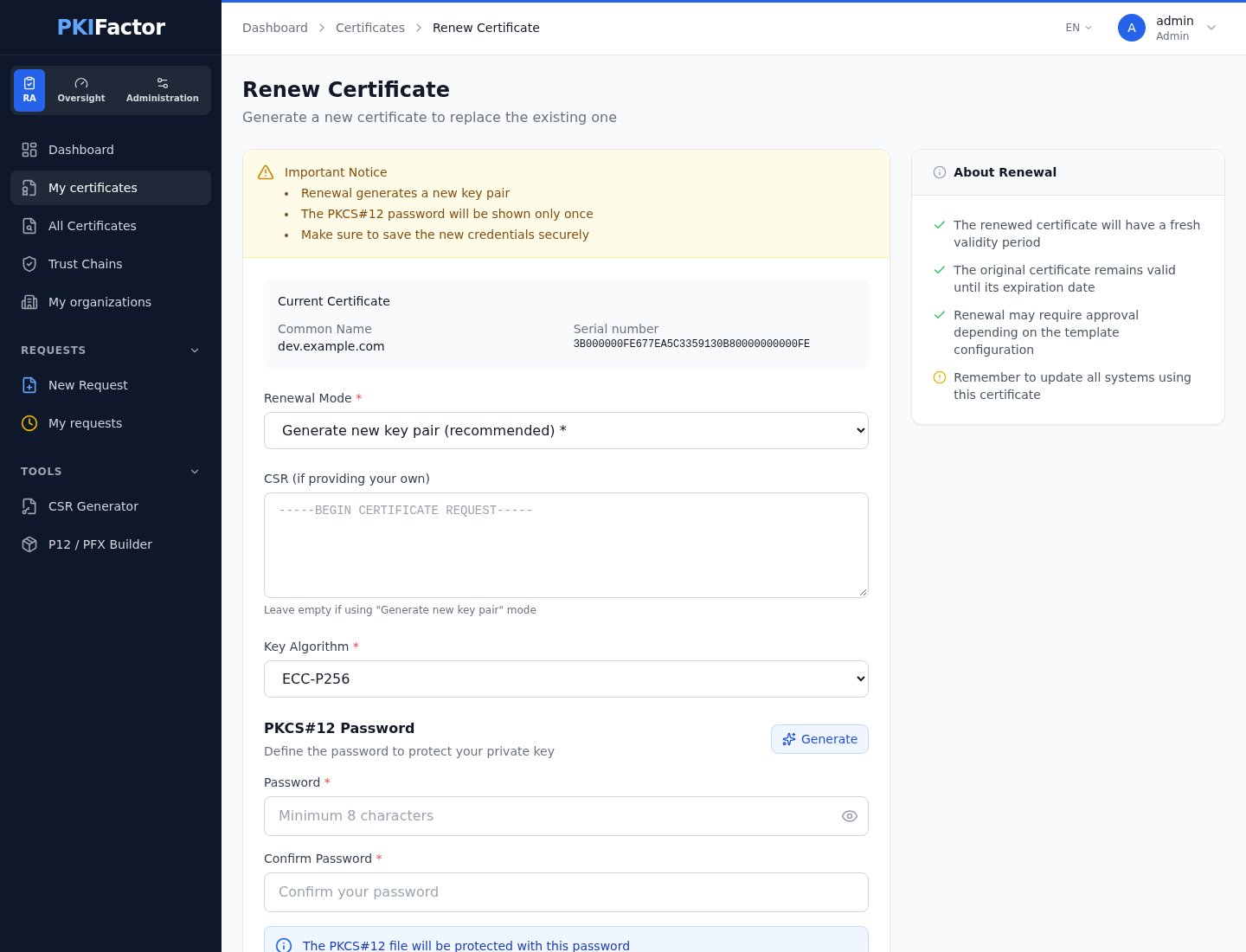
Renew a certificate
Renewal issues a new certificate for the same identity, with a new key and a new validity period. The current certificate is not revoked: it stays valid until it expires or until you revoke it.
- Open the
⋮menu and click Renew, or click Renew at the bottom of the detail page. - The Renew Certificate page recalls the current certificate (common name, serial number).
- Choose the Renewal Mode: Generate new key pair (recommended) or Provide my own CSR (paste the CSR in the text area). The profile may allow only one, and Provide my own CSR is offered only to the owner and the certificate's team (see below).
- Choose the Key Algorithm. The list holds what the profile, its authority and the issuance policies allow together; the algorithm of the current certificate is preselected when it is still allowed, otherwise the profile's default (or choose the post-quantum pair, for a hybrid profile).
- In generate mode, set a new PKCS#12 Password (at least 8 characters; Generate proposes one). It may differ from the previous one.
- Click Renew Certificate.
Renewing with your own CSR: owner and team only
A CSR you provide carries a key that only you hold. Renewing someone else's certificate with your own CSR would give you a valid certificate in their name with your key. PKIFactor therefore accepts a provided CSR only from the owner of the certificate and the members of its team, under the same conditions as the download of the private key (note 1 above). An administrator or an operator who is not in the team renews with a key generated by PKIFactor; the form does not offer them the CSR mode, and the API refuses it with 403 (since version 1.8.49).
The new certificate keeps the profile, the common name, the subject alternative names, the organization, the team and the owner of the current one; the person who renews is recorded as the requester. If the profile requires approval, the renewal waits in the organization's queue (Renewal recorded. It is awaiting approval from an approver in your organisation; the current certificate stays valid meanwhile.); otherwise the new certificate is issued at once.
A renewal that changes the identity (another common name, or names that the current certificate did not have) is treated like a new request for those names: if an issuance policy requires approval for them, it waits in the queue even when the profile itself issues without approval.
Once the new certificate is deployed, revoke the old one with the reason Superseded: as long as it is Issued, it keeps receiving expiry alerts.
Renewal is accepted only for a certificate with the status Issued. The list also offers Renew on Expired certificates, but the server refuses it (Renewal Failed): make a new request instead. A revoked certificate cannot be renewed either.
Certificates issued through ACME
A certificate obtained by an ACME client (certbot, acme.sh, win-acme...) through the PKIFactor ACME server is renewed by that client, on the server. Its detail page shows Renewal driven by the ACME client instead of Renew, and a Request early renewal button: it records the request and, for clients that read ARI (RFC 9773), opens the renewal window at their next check. Withdraw the request cancels it. To force a renewal at once, run the client on the server, for example certbot renew --cert-name <domain> --force-renewal. See ACME clients.
For a profile linked to a public ACME authority, the detail page shows Renew now: PKIFactor generates a new key and runs the order itself (it may take about 30 seconds).
Revoke a certificate
Revocation invalidates a certificate before its expiry. It cannot be undone.
From the list: ⋮ menu, Revoke, then click a reason and confirm. From the detail page: Revoke, choose the Revocation Reason, then Revoke.
| Reason | Use it when |
|---|---|
| Key Compromise | The private key was exposed or may have been |
| CA Compromise | The issuing authority was compromised |
| Affiliation Changed | The name or the organization in the certificate is no longer accurate |
| Superseded | The certificate was replaced, typically after a renewal |
| Cessation of Operation | The service is shut down |
| Unspecified | None of the above |
| Certificate Hold, Privilege Withdrawn | Offered on the detail page only |
The Comment (optional) of the dialog (up to 1,000 characters) is recorded in the audit trail and, when the revocation waits for approval, shown to the approver on the review page (since version 1.8.50).
What happens next depends on the profile and on the authority:
| Banner in the list | Meaning |
|---|---|
| Certificate revoked. It is no longer valid and appears in the next published revocation list. | Revoked in PKIFactor and at the authority |
| Revocation request recorded. It is awaiting an approver's approval; the certificate stays valid until then. | The profile requires approval: the revocation waits in the organization's queue. Meanwhile the certificate shows Pending Approval and cannot be downloaded. If the validator rejects the revocation, the certificate returns to Issued |
| Certificate revoked in the CLM, but propagation to the CA FAILED... | Revoked in PKIFactor only. The authority did not record it, so clients checking the CRL or OCSP still accept the certificate. Contact your administrator to revoke it at the authority |
A revoked certificate stops receiving expiry alerts, and a Certificate ... has been revoked e-mail goes to you and to the team address. Clients that check revocation see it once the authority publishes its next CRL or answers through OCSP.
Transfer a certificate to a colleague
⋮ menu, Transfer ownership. In the Transfer Certificate dialog, choose the New owner among the active users, then Transfer. The certificate leaves your list (unless you also belong to its team) and the new owner has full access. The transfer is recorded in the audit trail.
The owner, a member of the certificate's team or an administrator can transfer. The new owner must be a member of the certificate's organization, and you cannot transfer a certificate to yourself: taking ownership would give you the right to export its private key.
Change the team e-mail of a certificate
⋮ menu, Update team email. Type the new Team email address and click Update. The new address receives the certificate's notifications from now on. The change is recorded in the audit trail.
Certificates of your teams
When a certificate's team e-mail designates a team you belong to (through a directory group or a team managed in PKIFactor), the certificate appears in your My certificates tab, with the team in the Team column. You can download, renew and revoke it as long as you are also a member of the certificate's organization. Team membership itself is managed by your administrator (Organizations and teams, Directory sources).
All certificates of your organizations (administrators and operators)
Administrators, and operators who hold the permission to view all certificates, also have Overview > All Certificates in the RA workspace. The Organization certificates page lists every certificate: all of them for an administrator, those of the operator's organizations for an operator. It shows counters (total, issued, pending, revoked, expired) and adds filters to those of My Certificates: Source (CLM, Absorbed, Imported, Discovered), Usage (TLS server, TLS client, e-mail, smart card, controller/KDC, code signing, CA...) and organization. The same Columns button applies.
In a row's ⋮ menu, Emergency Revoke revokes an issued certificate at once, without going through the approval queue, and records it in the audit trail. An operator needs the revocation permission, and only reaches certificates of their organizations. See Users and roles.
Trust chains
Overview > Trust Chains shows, to every signed-in user, the CA chains that PKIFactor knows: the chain of each PKI connector (or, when none was stored, the one returned with its latest certificate), and the standalone trust chains added by an administrator. For each chain you see its type, its depth, the root's key algorithm, a Post-Quantum badge when relevant and, when PKIFactor monitors the authority's revocation list, a CRL: N revoked badge (amber when the list is out of date, CRL: unreachable when it cannot be fetched). Click a certificate of the chain to read its subject, issuer, validity, key, extensions, revocation addresses and fingerprints.
Administrators add a chain with Add Trust Chain (Name, Description, CA Chain (PEM): the intermediate and root certificates one after the other) and delete the standalone ones. These chains also decide which issuers the Discovery workspace counts as your own CAs (Discovery workspace).
My organizations
People who manage the members of at least one organization see Overview > My organizations: it lists those organizations and lets them manage their members. Approving stays with the organization's approvers. See Organizations and teams.
Expiry alerts
PKIFactor checks every day the certificates with the status Issued and sends an alert e-mail on fixed days before expiry: by default 30, 14, 7 and 1 days before. The administrator sets these days (E-mail and notifications); a profile can turn expiry alerts off. Each alert is sent once per certificate and per day threshold.
| Certificate | Recipients | |
|---|---|---|
| Requested through PKIFactor | You (the owner) and the certificate's team address (or, without one, the profile's notification address) | Certificate ... expires in N days (expires tomorrow, expires today) |
| Issued through ACME, not renewed yet | The ACME account's e-mail and the profile's notification address | ACME certificate ... expires in N days, then from 7 days WARNING: no renewal seen, ... expires in N days |
| Issued through ACME, already renewed | Nobody | None |
Alerts stop when the certificate is revoked or expires. A renewed certificate stays Issued and keeps receiving alerts: revoke it once its replacement is in service. If you receive no alerts, check the certificate's team e-mail (Update team email) and ask your administrator whether the e-mail service is enabled.
Via the API
Sign in first (POST /api/auth/login with the form fields email and password, -c jar), then:
# My certificates and my teams' (scope=org: my organizations, read-only)
curl -s -b jar "https://clm.example.com/api/v1/certificates/my?status=ISSUED&search=web01&limit=50"

# Details, with the chain
curl -s -b jar "https://clm.example.com/api/v1/certificates/detail/490?include_chain=true"

# Downloads
curl -s -b jar -o web01.crt       https://clm.example.com/api/v1/certificates/490/download/cert
curl -s -b jar -o web01_chain.pem https://clm.example.com/api/v1/certificates/490/download/chain
curl -s -b jar -o web01.p12 -X POST https://clm.example.com/api/v1/certificates/490/download/p12

# Renew (JSON). Without key_algorithm, the renewal keeps the current algorithm if the profile still allows it
# (GET /api/v1/certificates/490/renew-options lists the allowed algorithms and the default)
curl -s -b jar -X POST https://clm.example.com/api/v1/certificates/renew \
  -H "Content-Type: application/json" \
  -d '{"cert_id": 490, "key_algorithm": "ECC-P256", "p12_password": "'"$P12_PASSWORD"'"}'

# Revoke (form field). Reasons: unspecified, key_compromise, ca_compromise,
# affiliation_changed, superseded, cessation_of_operation, certificate_hold,
# privilege_withdrawn... (camelCase and RFC 5280 numeric codes are accepted too)
curl -s -b jar -X POST https://clm.example.com/api/v1/certificates/490/revoke \
  --data-urlencode "reason=superseded"

# Team e-mail and transfer (JSON)
curl -s -b jar -X PATCH https://clm.example.com/api/v1/certificates/490/team-email \
  -H "Content-Type: application/json" -d '{"team_email": "web-team@example.com"}'
curl -s -b jar -X POST https://clm.example.com/api/v1/certificates/490/transfer \
  -H "Content-Type: application/json" -d '{"new_owner_id": 42}'
A revocation reason that is not a known code (free text) is kept in PKIFactor as the reason, and sent to the authority as unspecified (since version 1.8.26). The revocation answer carries "status": "REVOKED", "pending_approval": true (waiting for a validator) or a pki_warning (revoked in PKIFactor only). A PKCS#12 download outside its window answers 410.
Troubleshooting
| Symptom | Cause and fix |
|---|---|
| Download PKCS#12 is greyed out (PKCS#12 unavailable) | You provided a CSR (PKIFactor does not hold the key), the status is not Issued, or the availability window has passed (P12 expired). Without the key, rebuild a bundle from your own key with the P12 / PFX Builder or openssl |
| Download P12 on the detail page ends on an error page | Same causes: the button is shown to the owner and the team for every issued certificate, but the server refuses when no PKCS#12 is available |
| Download P12 is missing from the detail page | Only the owner and the members of the certificate's team can export the private key; administrators and operators cannot |
| The PKCS#12 password is refused when opening the file | Use the password set at the request (or at the renewal, for a renewed certificate), not your account password |
| The server does not trust the certificate installed from the PKCS#12 | The PKCS#12 contains no chain: install the chain too (Full Chain (PEM)) |
| Renewal Failed | The certificate is not Issued (expired or revoked), the CSR is refused by the profile, or a policy blocks the name. Make a new request for an expired certificate |
| Revocation Failed | You are not allowed to act on the certificate, its status is no longer Issued, or the authority refused. Retry or contact your administrator |
| Banner Certificate revoked in the CLM, but propagation to the CA FAILED | The authority did not record the revocation: ask your administrator to revoke it at the authority |
| The My organization tab is empty | You belong to no organization, or no certificate is attached to yours |
| A certificate of your team does not appear | The team e-mail does not designate a team you belong to, or your membership is not synchronized yet: check the Team column and ask your administrator |
| Transfer failed with Only the owner, a team member or an administrator can transfer | Operators cannot transfer a certificate |
| Transfer failed with The new owner does not belong to the certificate's organisation | Choose a member of the certificate's organization, or ask an administrator to add the person to it first |
| Transfer failed with A certificate cannot be transferred to yourself | Ask the owner, or an administrator, to transfer it to you |
| Update failed with Invalid email address | Type a complete e-mail address |
| Expiry alerts keep coming for a renewed certificate | The old certificate is still Issued: revoke it with the reason Superseded |